Smarter routes. Less windshield time.
Build and optimize routes with interactive maps, one-click optimization, polygon area selection, crew split tools, crew hours tracking, and real-time density analytics—all powered by Trimble Maps. Know exactly how efficient your routes are before your crews leave the shop.
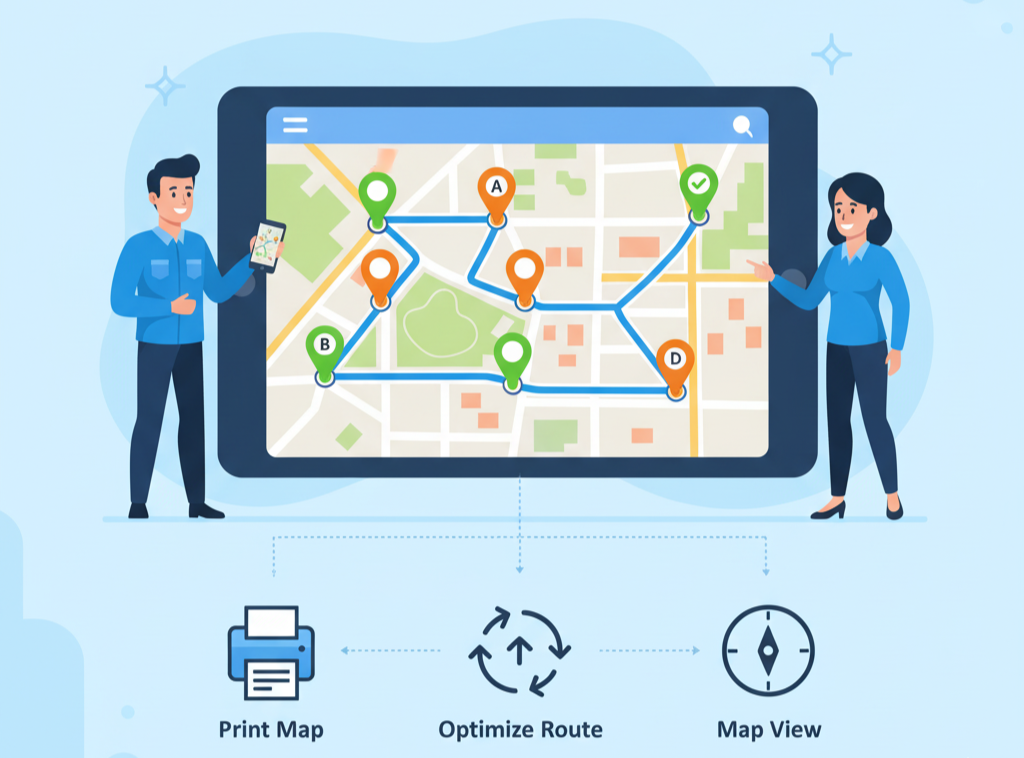
Everything you need to plan the perfect route
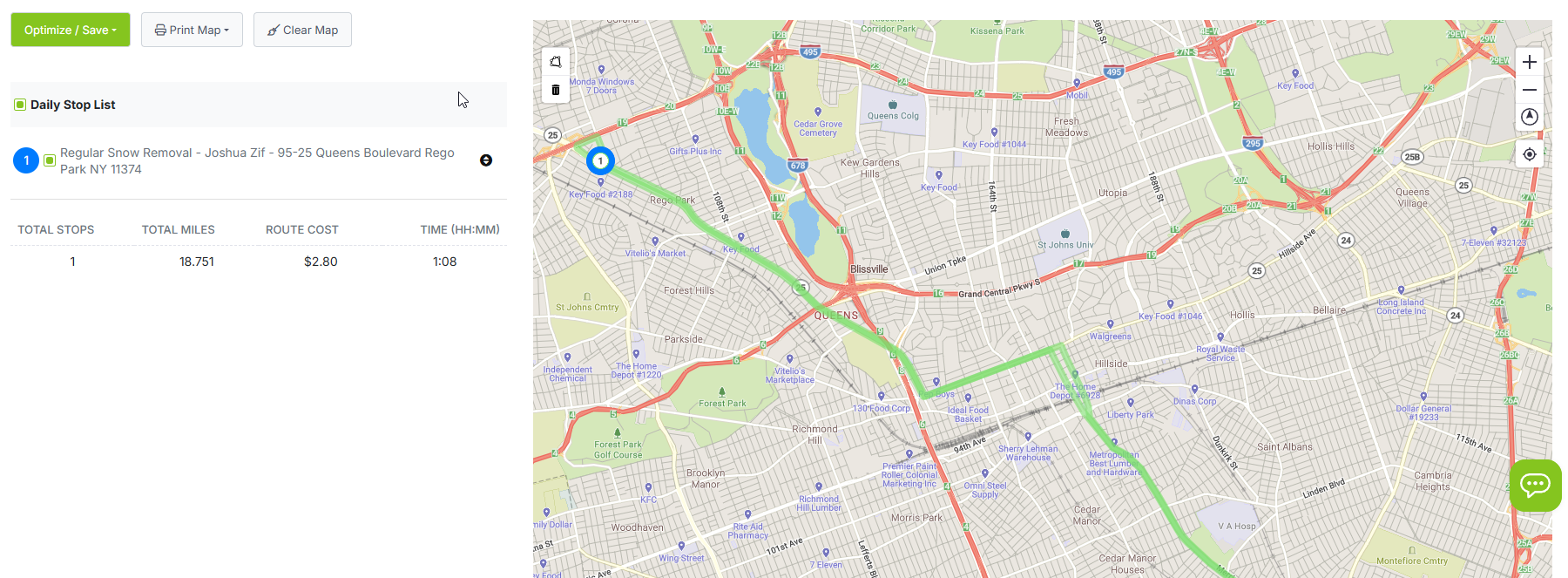
See your entire day on one map
Your daily stop list sits on the left. Your map—powered by Trimble Maps—sits on the right. Every scheduled visit appears as a pin on the map, color-coded by crew. Filter by crew, date, or service type to focus on exactly what you need. Click any pin on the map to toggle that stop's checkbox, highlight its row in the list, and scroll to it automatically. Right-click a pin to deselect it. You manage your route visually—no scrolling through a long list trying to match addresses to map locations.
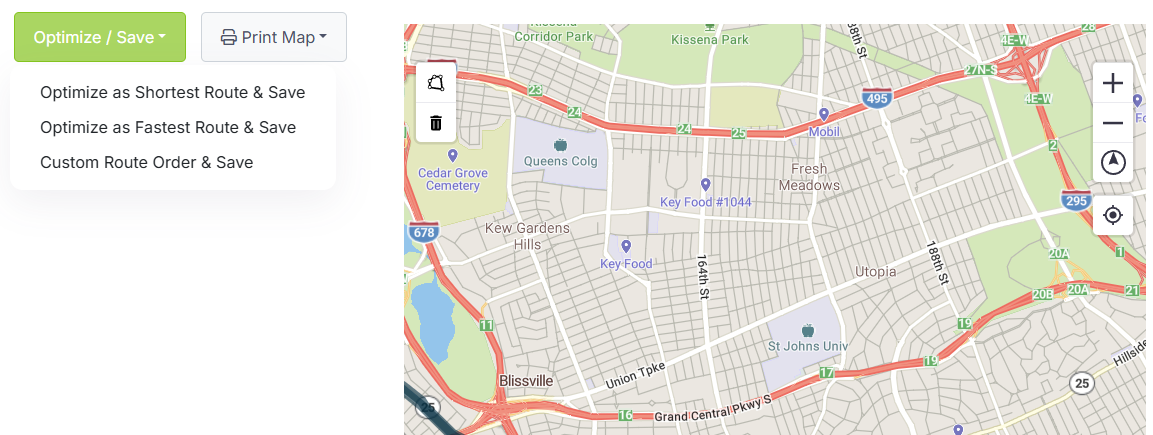
Shortest distance, fastest time, or your own order
Select the stops you want to include and choose how to optimize: shortest route minimizes total mileage, fastest route accounts for road speed and traffic, and custom route lets you lock in a specific sequence. LawnPro calculates the optimal stop order and resequences your list instantly. You can optimize for a single crew or generate separate optimized routes for each crew—all in one click. When you change the order, the stop list updates and the new sequence syncs to your team's mobile app.
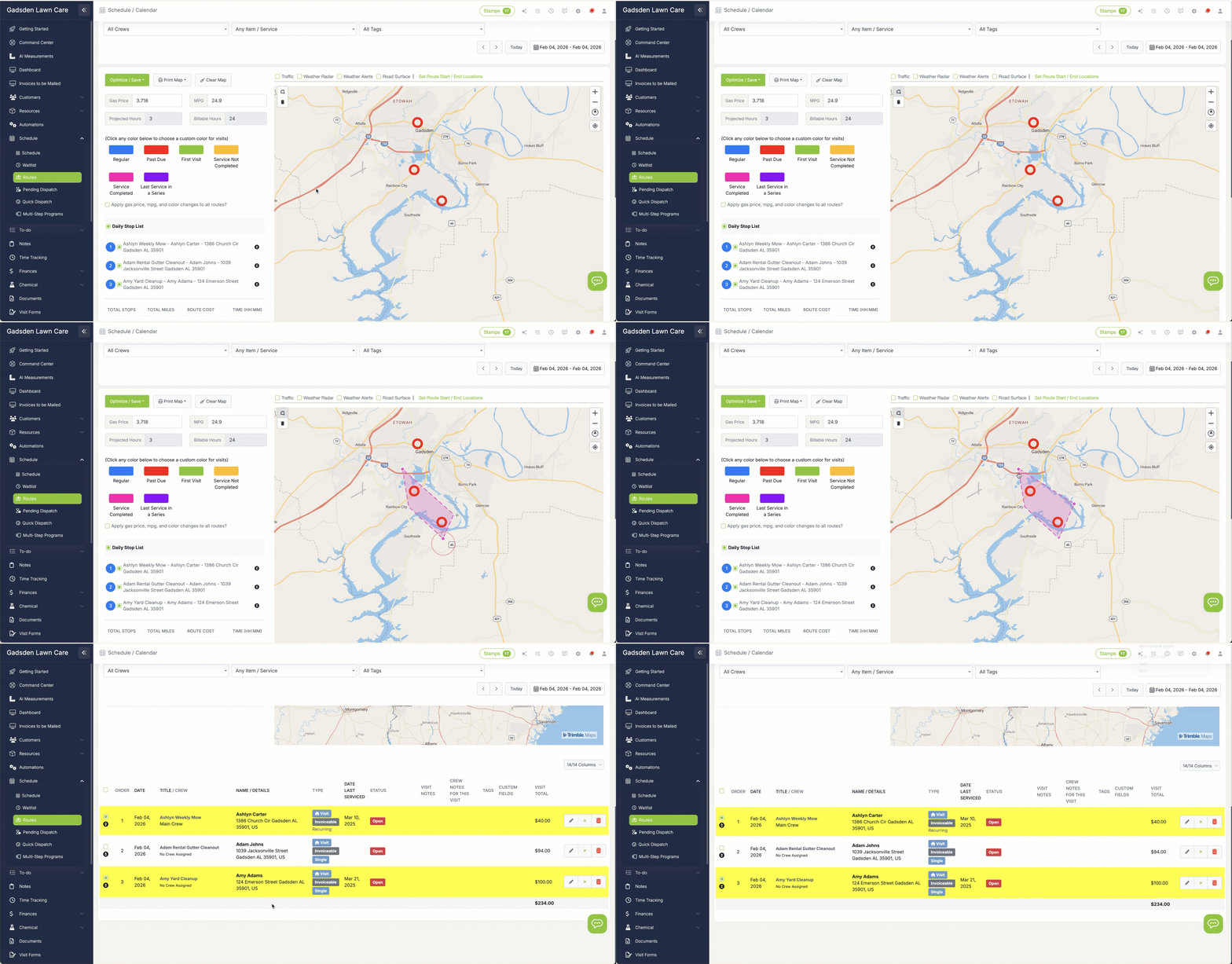
Draw a shape on the map to select stops instantly
The polygon lasso tool lets you draw a boundary directly on the map and every stop inside that shape is selected at once. Circle a neighborhood, outline a subdivision, or trace a service zone—any shape you draw works. It's the fastest way to reassign a cluster of stops between crews, build a half-day route for a specific area, or select a tight group of properties without touching the stop list. Combined with pin-click selection for individual stops, you have complete visual control over which stops are on your route and which aren't.
Know how efficient your route really is
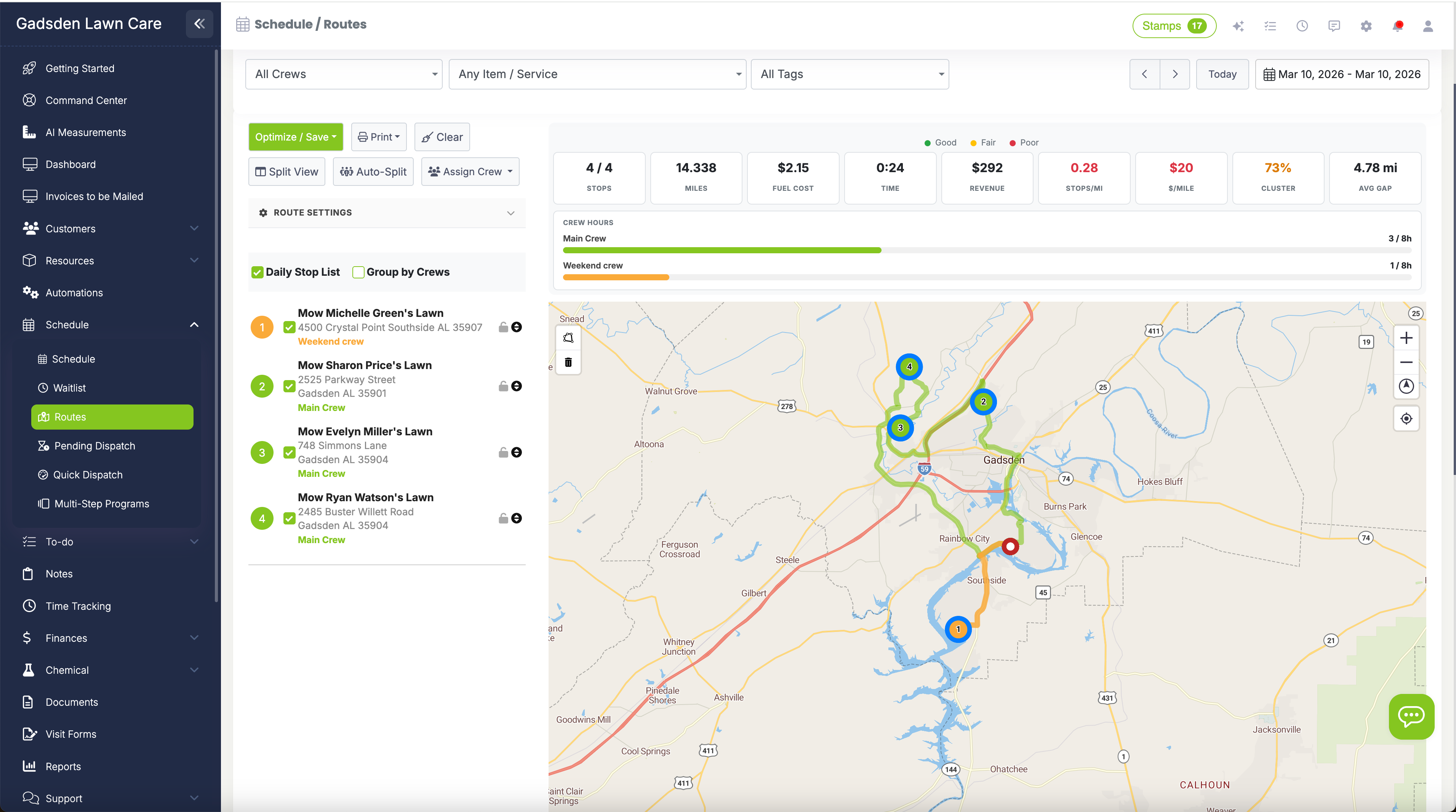
The density metrics panel shows you the numbers that matter: stops per mile, revenue per mile, cluster percentage, and average gap between stops. Each metric is color-coded—green means your route is tight and profitable, orange means there's room to improve, and red means you're burning fuel on windshield time. Toggle the customer density heatmap to see where all your customers are concentrated. Hot spots reveal neighborhoods where adding even a few more properties would dramatically improve your route efficiency. Use these insights to grow smarter—not just bigger.
See every crew. Split any route. Track every hour.
Each crew is assigned a color in LawnPro. Map pins are two-tone: the inner color identifies the crew, the outer ring shows the visit type. When multiple crews share the same route day, you can see exactly which stops belong to which crew at a glance—no filtering required.
The crew hours panel shows available hours, budgeted hours, and actual hours for each crew side by side. Spot an overloaded crew before they leave the shop and rebalance in seconds.
Need to split a day's work between two crews? Use the polygon tool or pin clicks to select a group of stops, assign them to a crew, then do the same for the rest. Each crew gets their own optimized sequence synced to their mobile app—without any overlap or confusion.
Real-time map overlays
Toggle live conditions on your route map so your crews know what they're driving into before they leave.
Traffic
Live traffic conditions color-coded by flow speed. Green means clear, red means delays.
Weather Radar
See precipitation moving through your service area in real time. Decide whether to send the crew or wait it out.
Weather Alerts
Active weather alerts highlight affected areas on the map. Click any alert zone to see the details.
Road Surface
View road surface conditions after your route is plotted to avoid hazardous or closed roads.
We used to spend 20 minutes every morning figuring out the best order for our stops. Now I click optimize and it's done. The density metrics showed us that one of our Thursday routes had a cluster score under 40%—we moved a few customers around and cut 30 miles off the day.
LawnPro Customer
Why LawnPro routing is different
Most routing software gives you a map and a list. LawnPro gives you the tools to understand, split, and improve every route you run.
Commercial-Grade Routing Engine
Built on a professional mapping engine used by logistics companies and fleet operators. Accurate addresses, real road networks, and routing that accounts for actual driving conditions—not straight-line guesses.
Polygon Lasso Selection
Draw any shape on the map and every stop inside it is selected instantly. Reassign zones between crews, build partial routes, or isolate neighborhoods in seconds.
Click Pins to Select Stops
Left-click any map pin to toggle it on, highlight its row, and auto-scroll to it in the stop list. Right-click to deselect. Manage your entire route visually from the map—no scrolling through a long checklist.
Route Density Metrics
See stops per mile, revenue per mile, cluster percentage, and average gap—all color-coded so you know instantly whether a route is tight and profitable or spread thin and costing you money.
Customer Density Heatmap
Toggle a heatmap overlay that shows where your customers are concentrated. Identify neighborhoods where adding a few more properties would dramatically improve your route density and daily revenue.
Drag-and-Drop Reordering
Grab any stop in the list and drag it to a new position. The route recalculates on the fly and the new sequence syncs to your team's mobile app. Override the algorithm when you know the area better than the computer does.
Crew-Colored Map Pins
Two-tone pins make multi-crew days instantly readable. The inner color identifies the crew, the outer ring shows the visit type. No filtering needed to know who owns each stop.
Crew Hours Tracking
See available, budgeted, and actual hours for every crew before the day starts. Catch overloaded routes early and balance workloads across your team without a separate spreadsheet.
Crew Split
Divide a single day's stops between multiple crews directly from the route builder. Select stops with the polygon tool, assign to a crew, repeat for the rest. Each crew gets their own optimized route synced to their mobile app.
Know what every route costs you
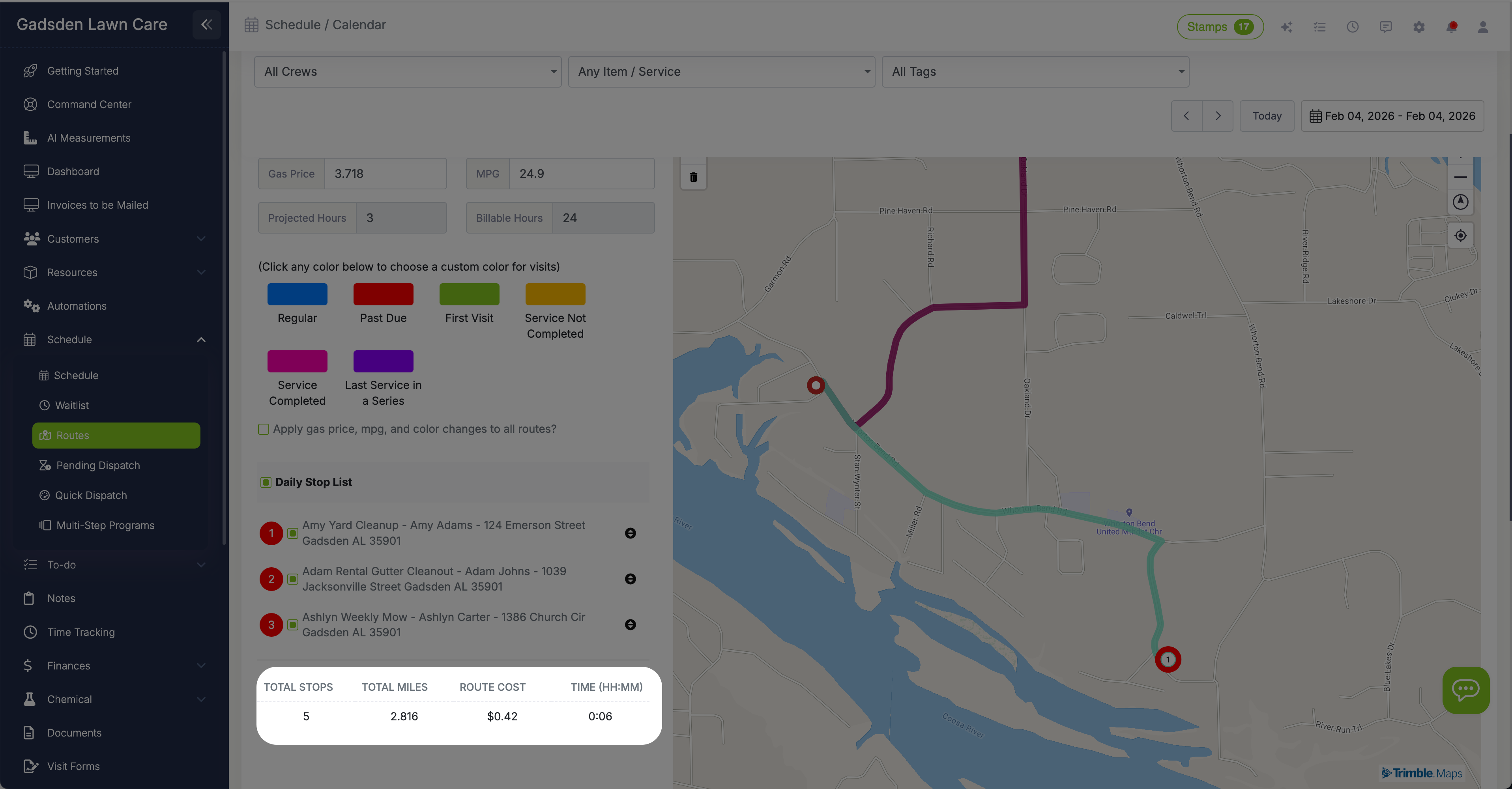
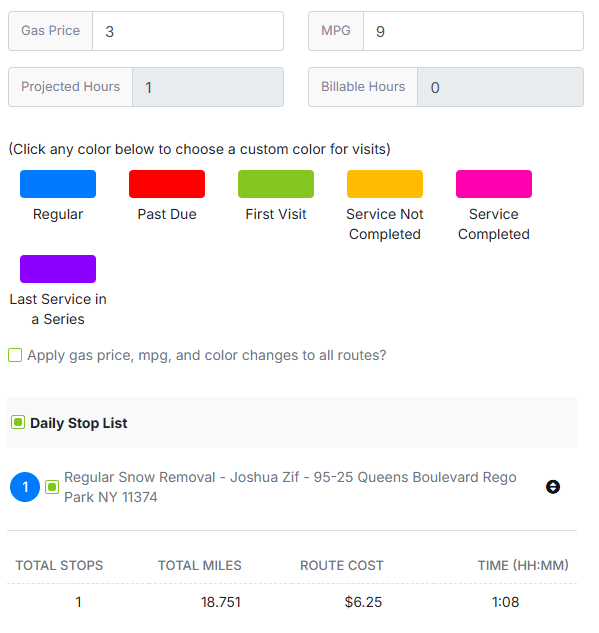
Enter your fuel price and vehicle MPG in route settings and LawnPro calculates the estimated trip cost for every route. Combined with density analytics, you'll know the revenue per mile, cost per mile, and true profitability of each crew's day before they pull out of the driveway.
Set your route start and end locations—your shop, a crew leader's house, or any address—and every optimized route begins and ends where you need it to. Change it any time from the routes page or from Settings > Preferences.
What is route optimization for lawn care?
Route optimization for lawn care means arranging your daily service stops in the most efficient order to minimize driving time, fuel costs, and wasted hours between properties. Instead of manually figuring out which stop should come first, routing software analyzes all your scheduled visits and calculates the best sequence based on distance, drive time, or your custom preferences.
LawnPro's routing goes beyond basic optimization. The interactive map—powered by Trimble Maps—gives you visual control over your route with pin-click selection and a polygon lasso tool for selecting groups of stops by drawing on the map. Route density analytics tell you exactly how efficient each route is with metrics like stops per mile, revenue per mile, and cluster percentage, so you can identify which days are profitable and which ones are burning fuel. A customer density heatmap reveals where your customers are concentrated, helping you make smarter decisions about where to market and grow.
For multi-crew operations, crew-colored map pins make it instantly clear which stops belong to which team—no filtering required. The crew hours panel shows available, budgeted, and actual hours for every crew before the day starts, so you can catch an overloaded route before it becomes a problem. The crew split tool lets you divide a day's stops between multiple crews directly from the route builder using the polygon lasso or pin selection, with each crew receiving their own optimized sequence synced to their mobile app.
Real-time overlays for traffic, weather radar, weather alerts, and road conditions let you plan around delays before your crews hit the road. Drag-and-drop reordering lets you override the algorithm when local knowledge matters. And because everything syncs to the mobile app, your crews always have the latest route order, turn-by-turn, without a phone call.
Frequently asked questions
Select the stops you want included, then choose shortest distance, fastest time, or custom order. LawnPro uses Trimble Maps to calculate the optimal sequence and reorders your stop list instantly. You can optimize for one crew or generate separate routes for each crew at the same time.
The polygon tool lets you draw any shape directly on the map to select all stops inside it at once. Click points on the map to define your boundary, double-click to finish, and every stop within the shape is checked automatically. It's the fastest way to select stops in a neighborhood, reassign zones between crews, or build a partial route for a specific area.
Density analytics are a set of efficiency metrics that show how well-clustered your stops are. The panel displays stops per mile, revenue per mile, cluster percentage, and average gap between stops—each color-coded green (good), orange (fair), or red (poor). Use them to spot routes that are costing you money in windshield time and find opportunities to tighten things up.
Yes. Left-click any pin to toggle that stop on, highlight its row in the stop list, and auto-scroll to it. Right-click a pin to deselect it. The pin flashes to confirm the action. This lets you manage your route entirely from the map when that's easier than working through the list.
The heatmap overlays all your customer locations on the map as a heat visualization—areas with lots of customers glow hot, sparse areas stay cool. Use it to identify neighborhoods where adding a few more properties would improve your route density, or to spot areas where you're underserving a customer-rich zone.
Yes. The map has toggle overlays for live traffic conditions, weather radar, weather alerts, and road surface conditions. Turn any of them on or off at any time—before or after optimizing your route—to plan around delays, storms, or road hazards.
Yes. Set your route start and end locations from the routes page or from Settings > Preferences. Use your shop address, a crew leader's home, a storage yard—any address works. Each optimized route will begin and end at those locations.
Absolutely. Drag and drop any stop in the list to a new position after optimization. The route updates on the fly and the new order syncs to your team's mobile app. Sometimes you know the neighborhood better than the algorithm—LawnPro lets you have the final say.
Each crew is assigned a color in LawnPro. Map pins are two-tone: the inner color shows which crew owns that stop, the outer ring shows the visit type. When you're managing a route with multiple crews on the same map, you can instantly see which stops belong to which crew without filtering or switching views.
The crew hours panel shows available hours, budgeted hours, and actual hours for each crew on a given route day. Use it to spot overloaded crews before they hit the road, balance workloads across teams, and make sure no crew is being sent out with more work than they can reasonably complete in a day.
Crew split lets you divide a single day's stops between multiple crews directly from the route builder. Select a group of stops using the polygon lasso or pin clicks, assign them to a crew, then repeat for the remaining stops. Each crew gets their own optimized sequence and the routes sync to their mobile apps separately—no overlap, no confusion.
Explore more features
See what else LawnPro can do for your business.
AI Route Optimization
Let AI analyze your entire customer base and suggest the most efficient daily route plans across all your crews.
Scheduling
Build and manage your schedule with drag-and-drop simplicity. Assign crews, set recurring visits, and keep your whole team on the same page.
Time Tracking
Track labor time on visits and jobs to improve accuracy and control costs. Mobile clock-in/out with GPS verification.
Resources
Help Articles
Step-by-step guides on setting up routes, optimizing, and tracking mileage.
Routing Help Articles →Video Tutorials
Watch how to build routes, use the polygon tool, split crews, and read density metrics.
Watch Videos →