Snap the receipt. LawnPro fills in the expense.
Take a photo of a receipt and LawnPro AI reads it for you: the vendor and category from your own lists, the date, the amount and the tax. Check it, tap save and the receipt photo is filed with the expense. No more shoebox of faded receipts at tax time. Included on every plan, with 10 free scans a month.
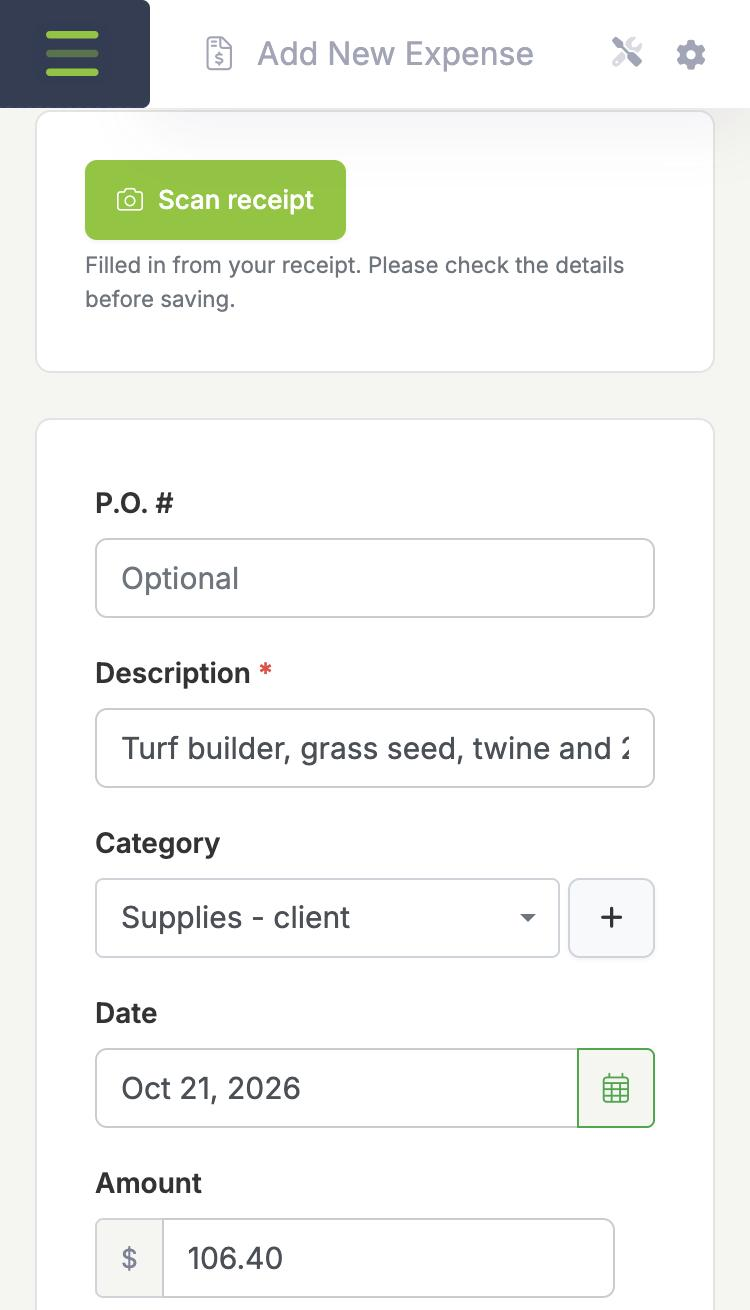
How receipt scanning works
From the gas station to your books in under a minute.
Snap a photo
On Add Expense, tap Scan receipt and take a photo of the receipt, right from the truck.
LawnPro fills it in
In a few seconds the vendor, category, date, amount, tax and a short description are filled in from the receipt.
Check and save
Look it over, tap save and the receipt photo is kept with the expense for tax time.
Every dollar out, accounted for
A photo instead of typing
Tap Scan receipt and LawnPro AI reads the photo. It fills in the description, date, subtotal and tax, and it picks the category and vendor from your own lists, so a SiteOne receipt lands on the SiteOne vendor you already have. If the store isn't in your vendor list yet, LawnPro tells you its name so you can add it.
Nothing is saved until you check it. The receipt photo is attached to the expense under Receipts & Documents, so it's there when your accountant asks.
Every plan includes 10 scans a month. With the LawnPro AI Assistant add-on ($29/month), scans are unlimited. Blurry photos or pictures that aren't receipts are turned away and don't use up a scan.
Know what each customer and truck really costs
Assign an expense to a customer and link it to one of their properties, estimates or invoices. Mulch for the Smith job stays with the Smith job. Expenses linked to an invoice show under Linked Expenses when you view it, and customers never see them.
Or assign the expense to a piece of equipment, a vendor or an employee, so repairs land on the right mower and reimbursements on the right person.
Set the regular bills once
Insurance, truck payments, shop rent and software subscriptions repeat every month. Make an expense recurring (daily, weekly, every two weeks, monthly or yearly), choose when the series ends and LawnPro adds each one for you.
Tax and payment details that match the receipt
Record up to two taxes on an expense as a percent or a dollar amount, and LawnPro works out the total. Mark it paid in full or record a partial payment, along with the payment method you used.
Organize everything with your own expense categories, like fuel, materials, equipment repair or insurance.
See where the money goes
The Expenses report lists every expense for any date range, filtered by category, and exports to CSV or PDF for your accountant. Expenses also flow into your Profit & Loss report, so you see what you made after costs, not just what you billed.
Bring your past expenses with you
Switching from a spreadsheet? Import your expenses from a file so your reports start with the full picture.
Frequently asked questions
On the Add Expense screen, tap Scan receipt and take a photo. In a few seconds LawnPro AI fills in the description, category, date, amount and tax, and picks the vendor if it's already in your vendor list. You check the details and save. The photo is attached to the expense as the receipt.
Every LawnPro plan, including the free Solo plan, includes 10 receipt scans a month. With the LawnPro AI Assistant add-on ($29/month) scans are unlimited. Photos that can't be read as a receipt don't count toward your free scans.
Yes. LawnPro AI chooses from your expense categories and your vendor list, so a Home Depot receipt lands on the Home Depot vendor you already have. If the store isn't in your list yet, LawnPro tells you its name so you can add it.
Yes. Assign an expense to a customer and link it to one of their properties, estimates or invoices, or assign it to a piece of equipment, a vendor or an employee. Expenses linked to an invoice show under Linked Expenses on that invoice. Customers never see them.
Yes. Make any expense recurring (daily, weekly, every two weeks, monthly or yearly) and choose when the series ends.
No. LawnPro's QuickBooks sync covers customers, invoices and payments. Expenses stay in LawnPro, where they feed your Expenses report and your Profit & Loss report.
Yes. Expenses, categories, recurring expenses, receipts and the Expenses report are included on every LawnPro plan, including the free Solo plan.
Explore related features
Expense tracking works hand-in-hand with these other LawnPro tools.
Invoicing
Bill customers and link the job's expenses to the invoice so you know what each job cost.
Time Tracking
Track crew hours alongside your expenses so you see the full cost of the work.
Resources
Help Center
Step-by-step help for adding expenses, scanning receipts and running expense reports.
Read the guide →Video Tutorials
Watch how LawnPro handles everyday lawn care work, from scheduling to tracking costs.
Watch Videos →Talk to Support
Questions about expense tracking? We're here 7am-7pm CST, 7 days a week.
Contact Us →