Say yes to more work—schedule it when you're ready
Customer approved an estimate but you're booked solid for the next three weeks? Don't lose the sale. Add it to your waitlist and schedule when capacity opens up. LawnPro keeps track of every approved job waiting for a spot on your calendar.
The problem: more work than you can schedule
It's a good problem to have—business is booming and customers are saying yes to your estimates. But when your calendar is packed for weeks out, what do you do with all that approved work?
Some companies try to track it in spreadsheets. Others leave notes in the estimate or hope they'll remember to come back to it. Many just tell the customer "we'll call you when we have an opening"—and then forget, losing the job entirely.
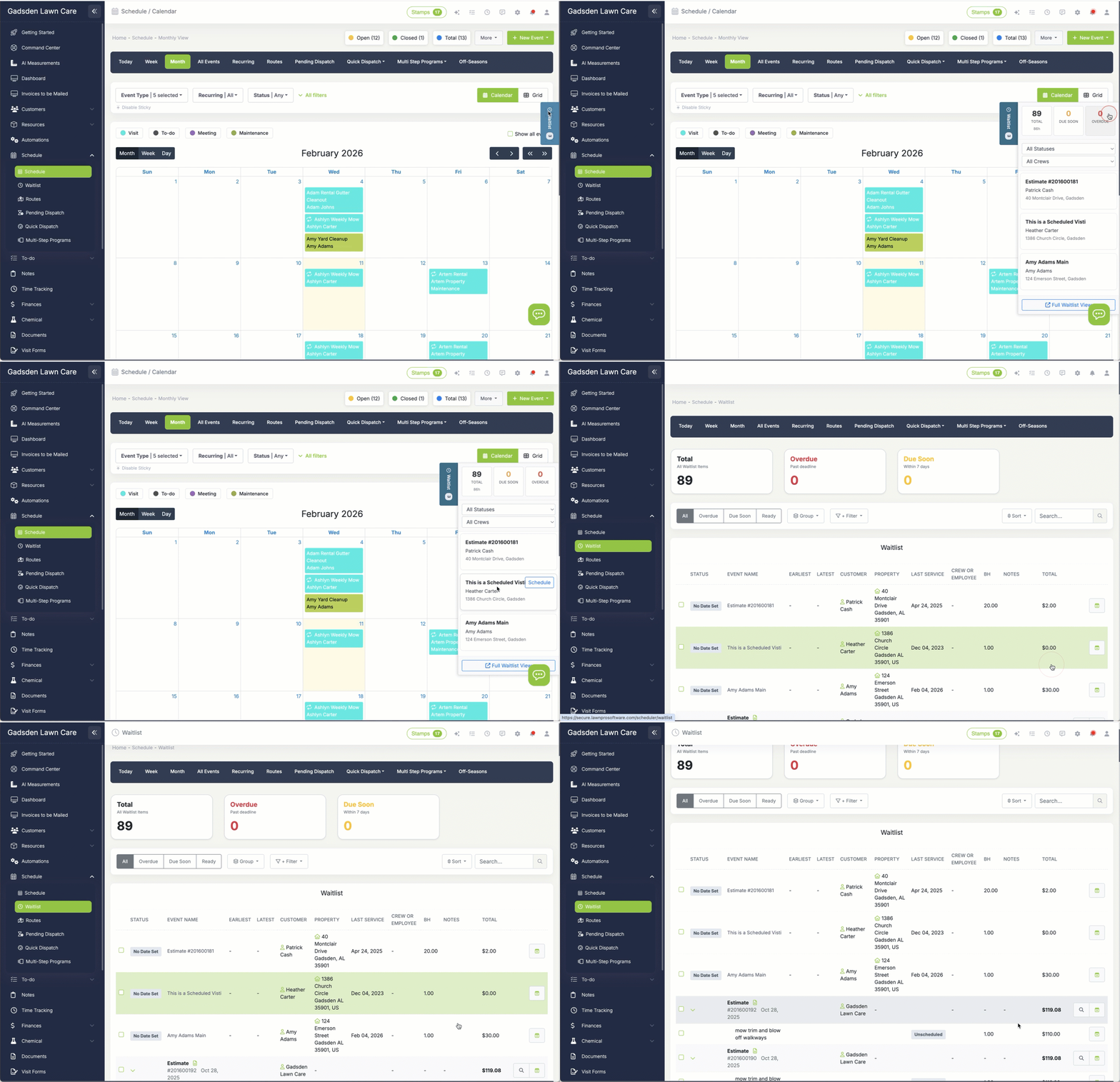
LawnPro's waitlist solves this problem. When an estimate gets approved but you can't schedule it yet, add it to your waitlist with a single click. The customer is locked in, the work is tracked, and you can see at a glance exactly how much revenue is sitting in your queue waiting for a spot on the calendar.
When capacity opens up—maybe a job cancels, or you bring on a new crew member—you pull from the waitlist and schedule instantly. No hunting through old estimates, no forgotten promises, no lost revenue.

How the waitlist works
From approved estimate to scheduled visit in a few clicks.
Customer approves estimate
They accept your quote through the client portal, email link, or you mark it approved manually.
Add to waitlist
Instead of scheduling immediately, add it to the waitlist. The estimate is accepted but not yet converted.
Capacity opens up
A job cancels, the season slows down, or you hire a new crew. Time to pull from the waitlist.
Schedule the work
Click "Schedule" on any waitlist item to convert it to a visit with the date and crew of your choice.
Add approved estimates to the waitlist
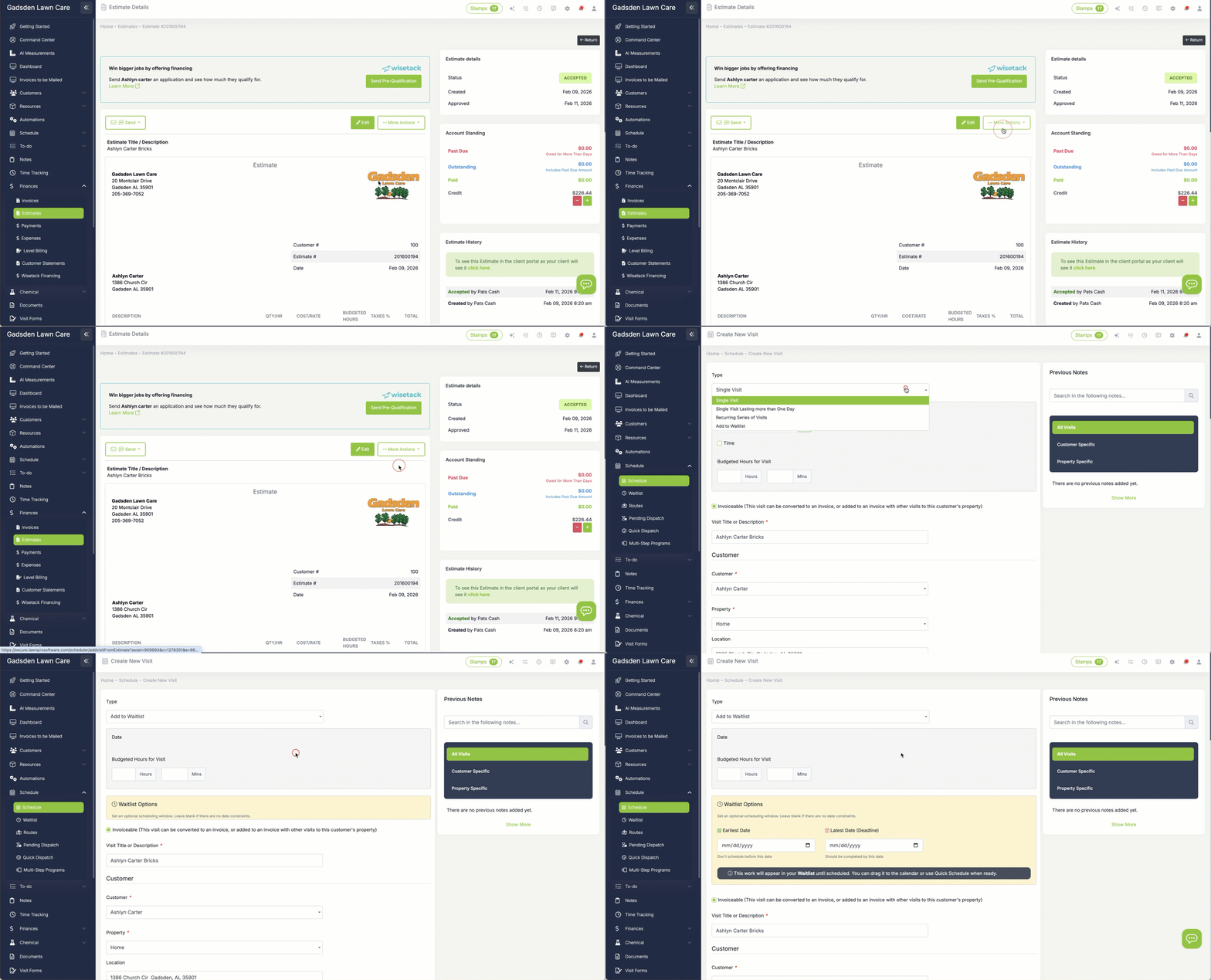
When an estimate is approved but you're not ready to schedule it, you have options. From the estimate screen, instead of clicking "Convert to Visit," you can choose to add it to the waitlist instead. The estimate status changes to "Accepted" but it doesn't create any calendar events yet.
You can also add existing visits to the waitlist. If you've already scheduled something but need to push it out (maybe due to weather or a customer request), you can move it to the waitlist rather than picking an arbitrary future date. This keeps your calendar clean and ensures you don't forget about the work.
Every waitlist item retains all the original estimate details—services, pricing, property information, and any notes. When you're ready to schedule, all that information comes with it.
See everything waiting to be scheduled
The waitlist page shows all your accepted, unscheduled estimates in one place. Each row displays the customer name, property address, services quoted, total value, and how long it's been waiting. At a glance, you can see exactly how much revenue is sitting in your queue.
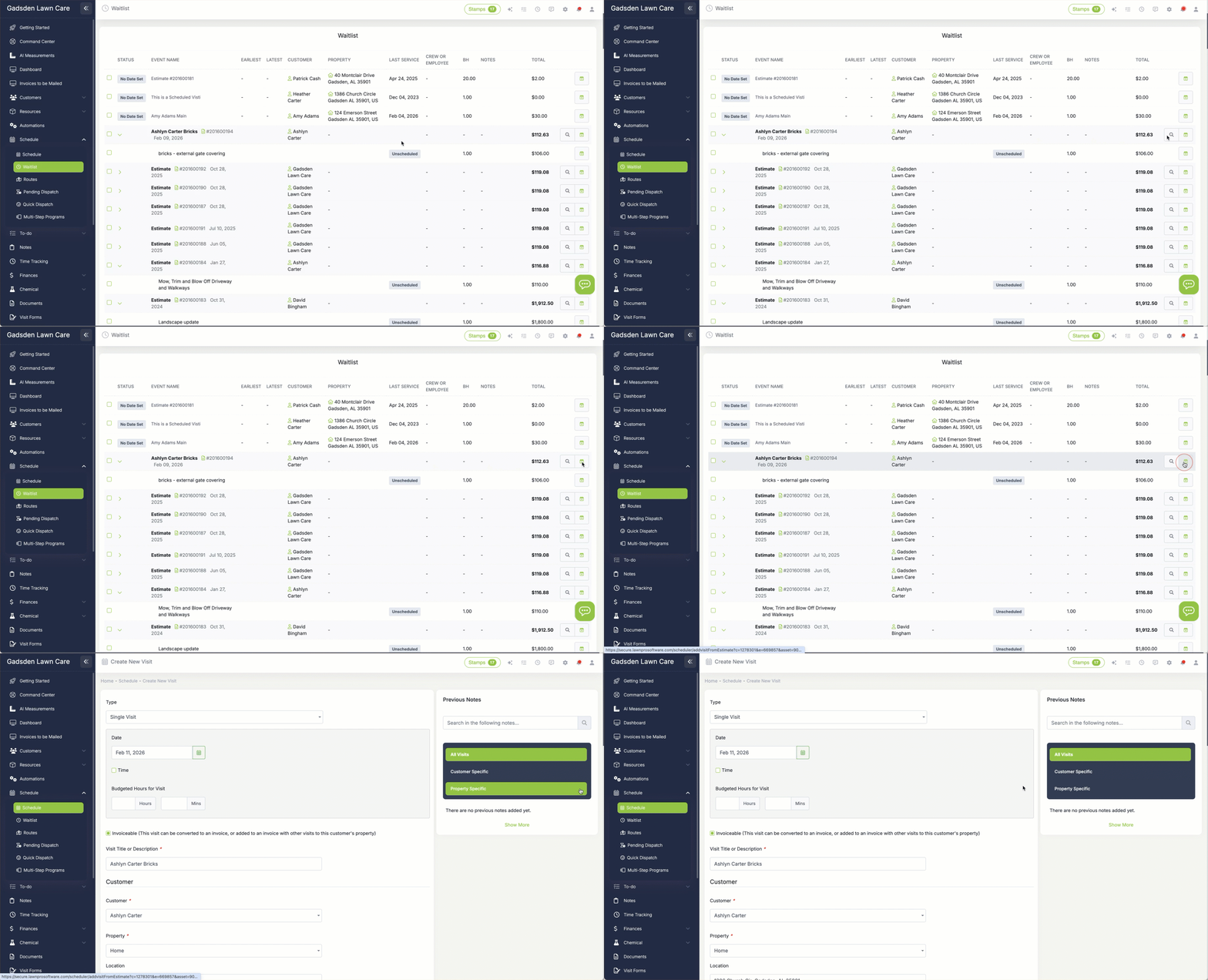
Estimates are shown as expandable groups—click on an estimate to see all the individual line items underneath. This is especially useful for multi-service estimates where you might want to schedule some items before others.
The waitlist also shows status badges so you know what's happening with each item: "Unscheduled" for items never scheduled, "Rescheduled" for items moved from the calendar, and completion status once work begins.

Find exactly what you need
When your waitlist grows to dozens or hundreds of items, filtering becomes essential. LawnPro's waitlist has powerful filtering tools to help you find exactly what you're looking for.
Filter by service category to find all the mulch jobs, all the aeration jobs, or all the hardscape projects. Filter by crew to see work that should go to a specific team. Filter by date range to find items added during a particular period. Or search by customer name, address, or estimate number.
You can also group the waitlist view by customer (to see all pending work for each client), by service category (to batch similar jobs together), or by crew (to see what's assigned to each team). Combine grouping with filtering to slice the data any way you need.

Convert waitlist items to scheduled visits
When you have capacity, scheduling from the waitlist is simple. Click the "Schedule" button next to any waitlist item, choose your date and crew, and the estimate converts to a scheduled visit. All the services, pricing, and customer details come along automatically.
You can also bulk-schedule multiple waitlist items at once. Select several items, click "Schedule Selected," and choose a date range. LawnPro will distribute the work across available days, respecting crew assignments and capacity limits.
For seasonal work, this is incredibly powerful. Imagine you have 50 spring cleanup estimates on your waitlist. When spring arrives, you can schedule all of them in one batch, spreading them across the first few weeks of the season.
Schedule individual services from an estimate
Sometimes an estimate includes multiple services that need to happen at different times. A customer might approve a quote for weekly mowing plus a one-time aeration plus a fall cleanup. You don't want to do all of those on the same day.
LawnPro lets you expand any waitlist estimate to see its individual line items, then schedule them separately. Schedule the mowing as a recurring weekly visit, schedule the aeration for next week, and leave the fall cleanup on the waitlist until October.
Each line item shows its status independently: "Unscheduled," "Scheduled," or "Completed." You can see at a glance which parts of an estimate have been handled and which are still waiting.

When the waitlist saves the day
Spring Rush
Estimates pour in faster than you can schedule them. Add approved quotes to the waitlist and work through them as capacity allows—no customer forgotten, no revenue lost.
Pre-Season Sales
Sell fall cleanups in August. Sell spring programs in January. Customers approve now, you schedule when the season starts.
Weather Delays
Rain cancels your schedule. Move affected visits to the waitlist. When weather clears, reschedule in order of priority.
Crew Capacity
Hiring a new crew member next month? Accept estimates now and waitlist them. When onboarded, you have work ready to assign.
Cancellation Backfill
Customer cancels and you have a hole in your schedule? Pull from the waitlist to fill it. Work waiting, ready to go.
Pipeline Visibility
Know exactly how much approved work is waiting. Forecast revenue, plan hiring, and make better business decisions.
Why lawn care pros love the waitlist
Never lose approved work
Every approved estimate is tracked and visible. No more forgotten quotes, lost sticky notes, or customers slipping through the cracks.
Keep your calendar clean
Your schedule shows only confirmed, dated visits. Pending work lives on the waitlist until you're ready to commit to a date.
Fill gaps instantly
When a cancellation opens a slot, you have a queue of approved work ready to drop in. No scrambling to find something to fill the time.
Forecast with confidence
See exactly how much revenue is waiting to be scheduled. Plan hiring, equipment purchases, and growth based on real committed work.
Learn More
Explore related features
Estimates
Create professional quotes that customers can approve online. The starting point for waitlist items.
Scheduling
Where waitlist items go when they're ready. Drag-and-drop calendar with recurring jobs.
Multi-Step Programs
For fertilization and pest control programs, build templates and assign to many properties at once.