Predictable payments for you and your customers.
Spread annual service costs into equal monthly payments. Create contracts in seconds, track status, edit terms, soft-cancel without losing history, run true-ups, and measure contract profitability—all in one place. The closest thing to subscription revenue in the lawn care industry.
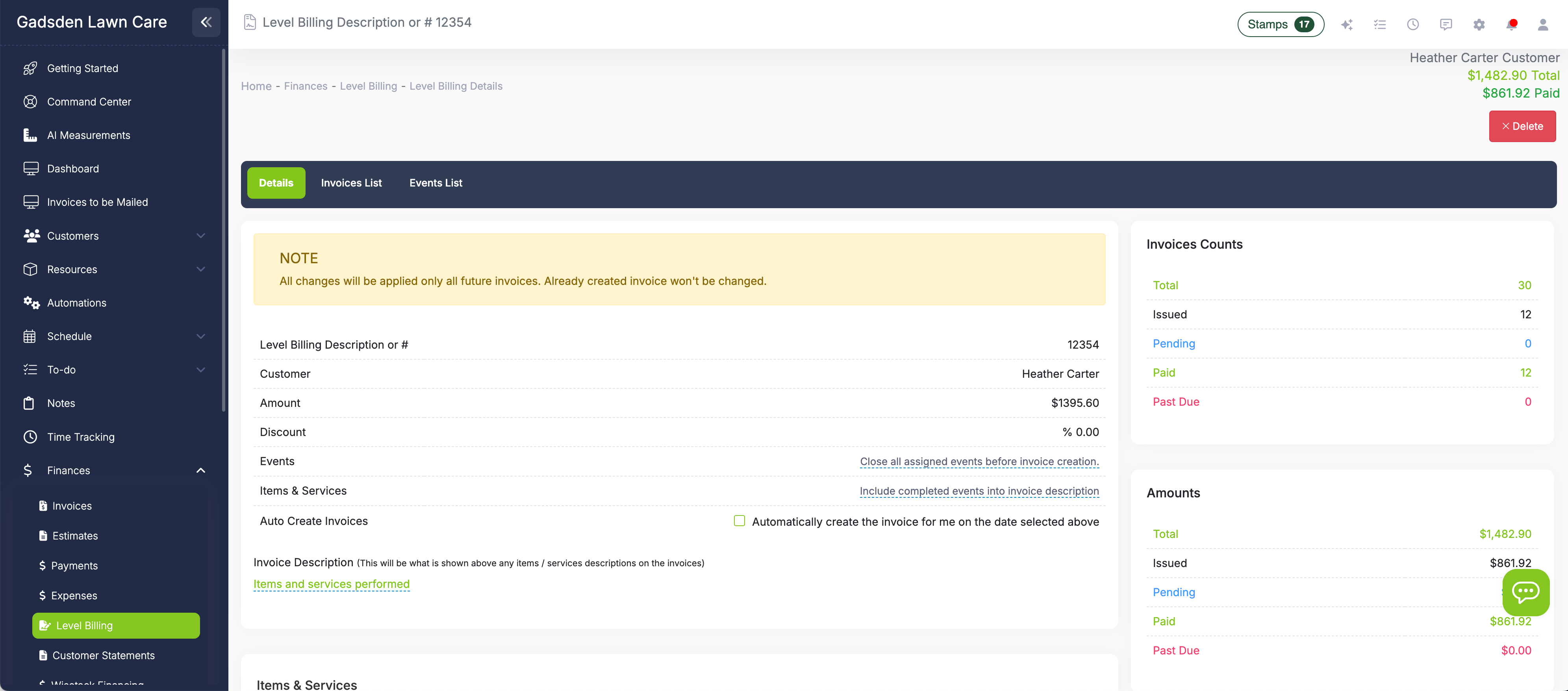
How level billing works in LawnPro

Three ways to set the contract value
Set the annual contract value from an estimate, from the customer's 12-month billing history, or by entering it manually. LawnPro shows you the math in real-time: $3,600 ÷ 12 payments = $300/month. Change the payment count and the per-invoice amount updates instantly. No guesswork, no spreadsheet needed.
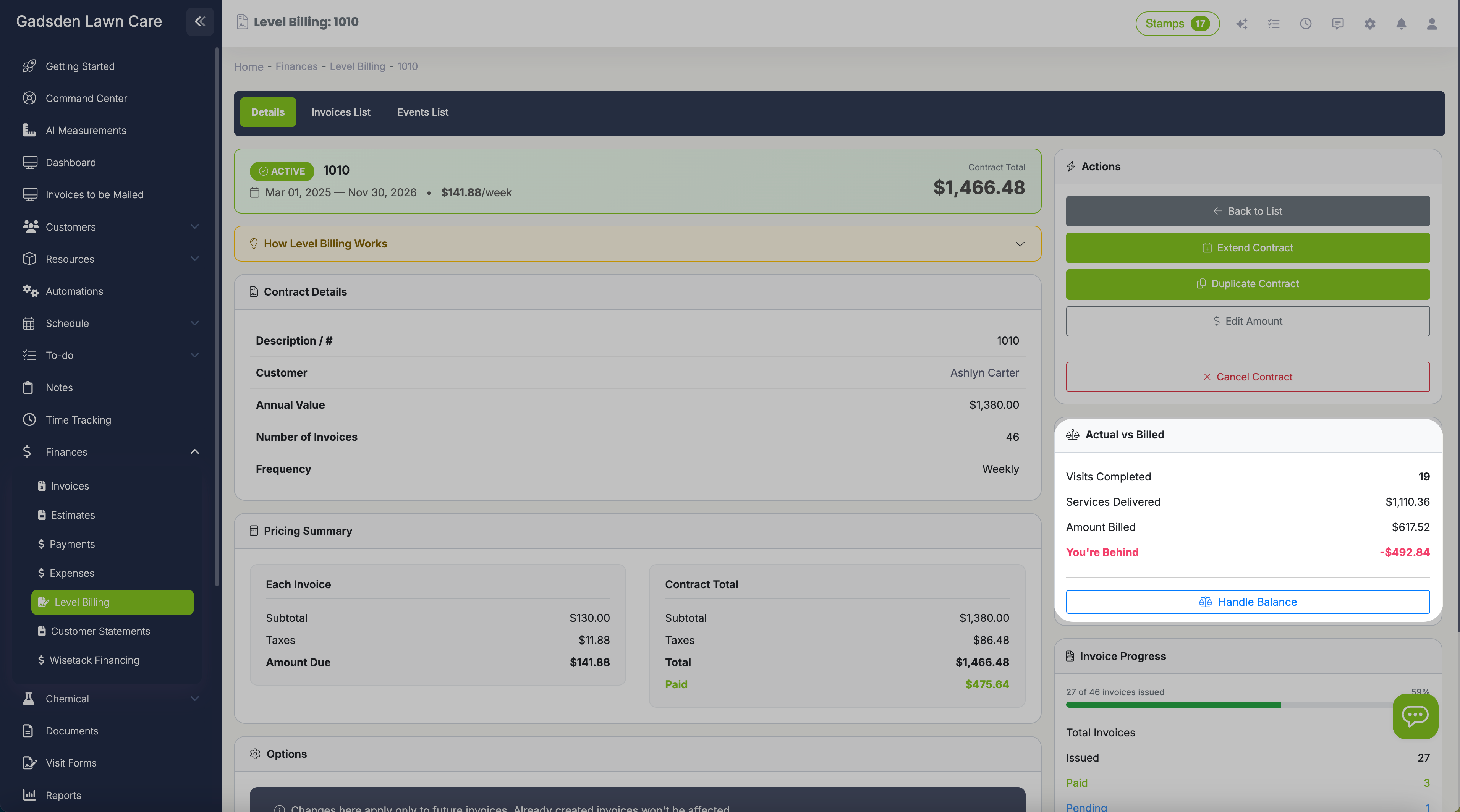
Know exactly where you stand—at all times
Every contract shows a running balance: the difference between what you've billed and the actual value of services delivered.
- You're Ahead +$450 — Billed more than delivered. Customer has prepaid for future services.
- You're Behind -$200 — Delivered more than billed. Time to catch up or reconcile.
- Balanced $0 — Services match billing. Perfect.
Click into any contract to see the full service history: every completed visit, its actual value, the amount billed that period, and a running balance column.
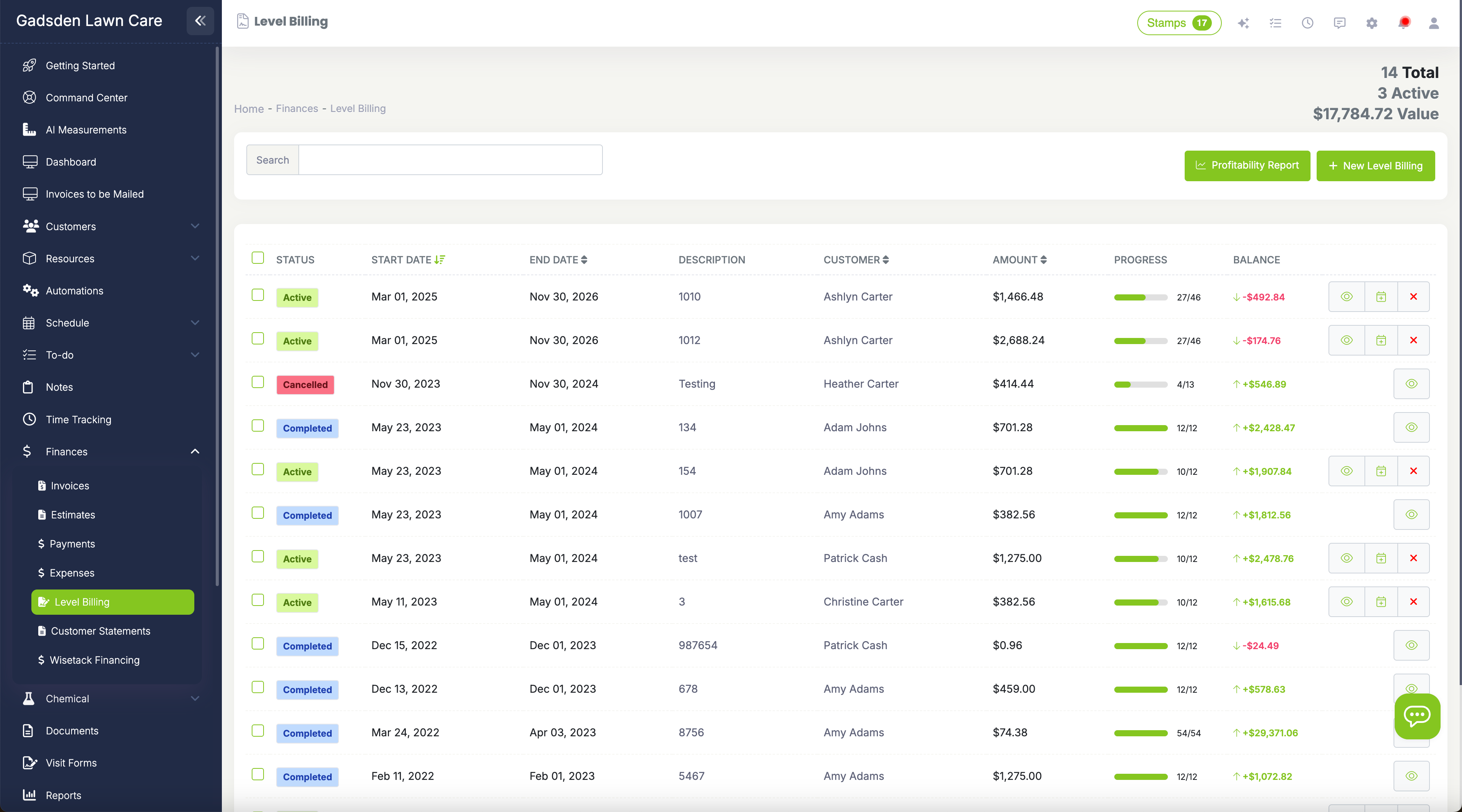
Always know the state of every contract
Each contract carries a status that reflects exactly where it stands in its lifecycle. Statuses include Active, Paused, Soft Cancelled, Completed, and Cancelled.
The contract list filters by status so you can quickly see which agreements are running, which are on hold, and which have wound down. Status badges are visible at a glance without opening each contract—useful when you're managing dozens of agreements at once.
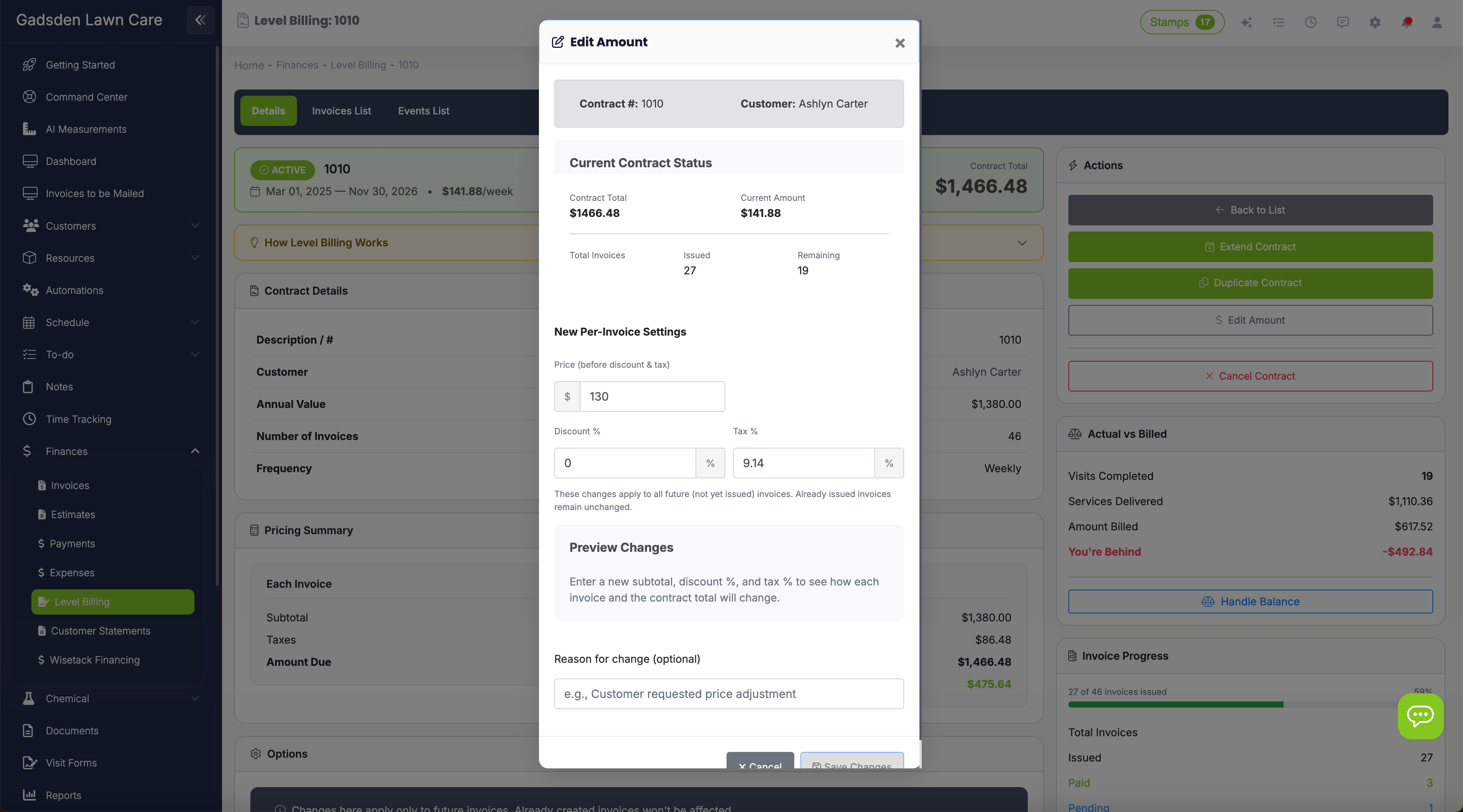
Contracts that flex with your customers
Editable Contracts — Need to adjust a contract after it's active? Edit the terms—contract value, billing amount, dates—at any time. Changes apply going forward without affecting invoices already issued. No need to cancel and recreate.
Soft Cancellation — When a customer pauses without fully walking away, soft cancel stops new invoices from generating without deleting the contract or any of its history. The service record, invoice log, and actual vs. billed balance all remain intact so you can still reconcile properly when the time comes. Soft-cancelled contracts can be reactivated if the customer returns.

Renewals and extensions in seconds
Extend Contracts — Add more invoices to an existing contract. The extend page shows you exactly what you're adding: current end date, new end date, additional invoices, and updated contract total. Live preview before you commit.
Duplicate Contracts — Renewing a customer for another year? Copy an existing contract with one click. Customer, pricing structure, and settings carry over—just update the dates and save. No re-entering from scratch.
Progress Tracking — The contract list shows a visual progress bar for each agreement. See at a glance how far through the contract you are and how many invoices remain.
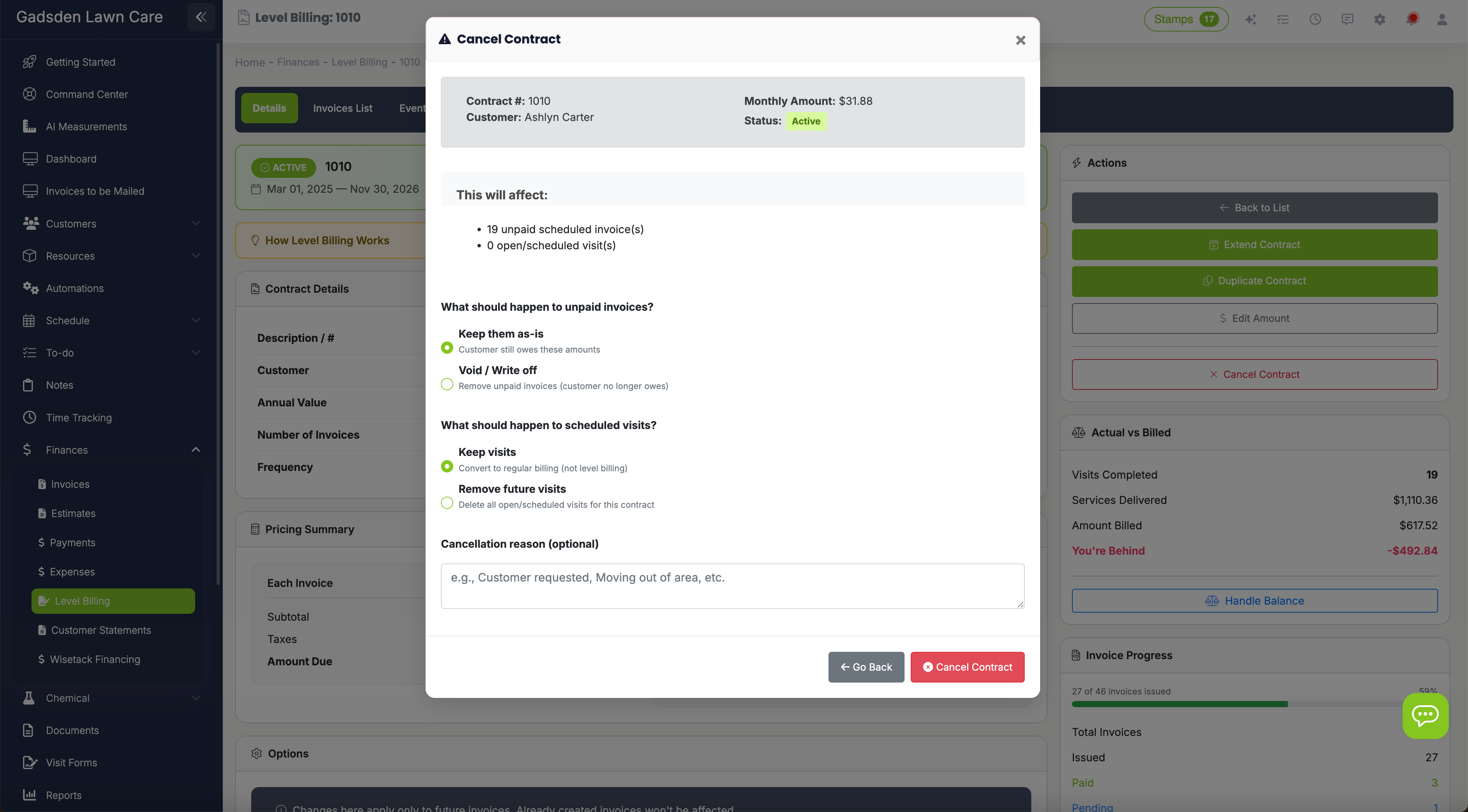
Close out contracts cleanly
When a contract ends or is cancelled, the Actual vs. Billed widget shows your final position. Click Handle Balance to run a true-up:
- Issue Credit — Overbilled? Issue a credit for any amount up to the balance. It applies to future invoices automatically.
- Write Off Balance — Small difference not worth chasing? Write it off with a note. Contract marks as reconciled.
- Create Final Invoice — Underbilled? Create an invoice for the remaining amount with one click.
- Do Nothing — Not ready to decide? Leave it and come back later.
The reconciliation page shows the complete service history, invoice history, and totals so you have all the context you need before making the call.
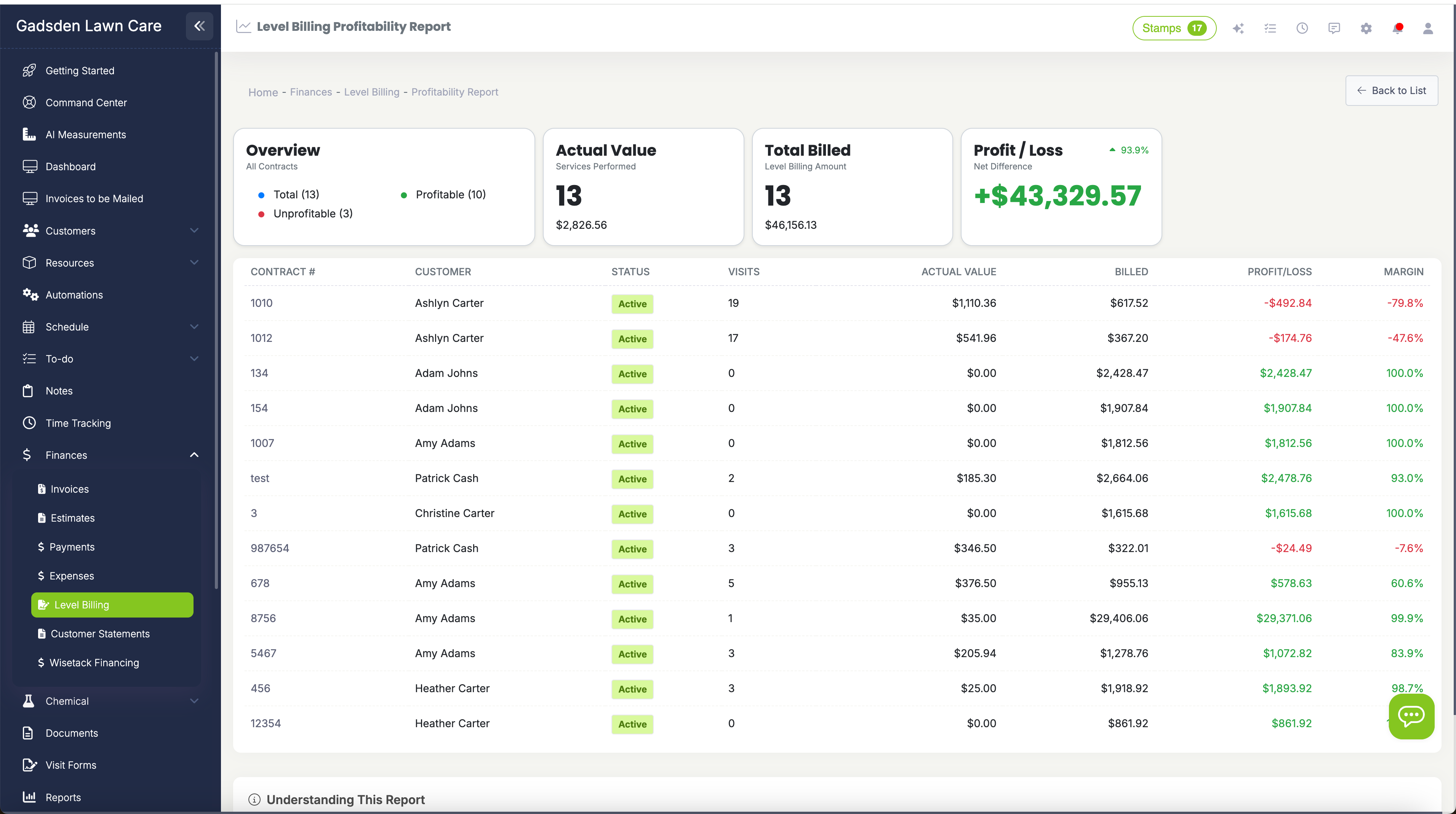
Know which contracts are actually making money
The profitability report compares the total billed under each contract against the actual cost of services delivered—giving you a gross margin view per agreement.
Use it to identify which contracts are highly profitable, which are barely breaking even, and which are running at a loss. When a customer comes up for renewal, you'll know exactly whether to hold the rate, raise it, or restructure the scope—based on what last year actually cost you to deliver.

Eliminate the winter cash crunch
Most lawn care businesses see revenue drop dramatically in winter. You're still paying employees, truck payments, insurance, and rent—but the mowing revenue disappears. Level billing solves this by spreading annual service costs into equal monthly payments. You collect $300 in January just like you collect $300 in July.
Customers love it too. Instead of a $450 bill one month and nothing the next, they pay the same amount every month. It's easier for them to budget, and annual contract customers renew at significantly higher rates than per-visit customers—because the commitment creates a relationship, not just a transaction.
We moved 60% of our residential customers to annual contracts with level billing. Our December revenue went from barely covering expenses to matching our best summer months. The customers love knowing exactly what to expect, and we love not stressing about payroll in January.
LawnPro Customer
Complete contract lifecycle management
Level billing isn't just an invoice feature—it's a complete system for managing contracts from setup through profitability analysis.
3-Way Value Setup
Set contract value from an estimate, customer history, or manual entry. Live math preview shows the monthly amount instantly.
Actual vs. Billed Tracking
Running balance shows if you're ahead, behind, or balanced—updated automatically with every completed visit.
Contract Status Tracking
Active, Paused, Soft Cancelled, Completed, or Cancelled—every contract shows its current state. Filter the list by status in one click.
Editable Contracts
Edit contract value, billing amount, and dates after the contract is active. Changes apply going forward without touching existing invoices.
Soft Cancellation
Stop invoices without deleting the contract. Full service history and balance tracking remain intact for reconciliation. Reactivate if the customer returns.
True-Up Options
Issue credit, write off, or invoice the difference at contract end. One click, clean books, complete audit trail.
Profitability Reporting
Compare billed vs. cost of delivery per contract. Know which agreements are profitable before you set renewal rates.
Duplicate Contracts
Copy an existing contract for renewal. Customer and settings carry over—just update the dates.
Automatic Invoices
Invoices generate on the billing day you set. Combined with auto-charge, the monthly payment collects itself.
What is level billing for lawn care?
Level billing for lawn care takes the total annual cost of a customer's services and divides it into equal monthly payments. Instead of billing per visit—where customers see high bills in summer and nothing in winter—they pay the same flat amount every month. For the business, this means steady, predictable revenue year-round. For the customer, it means easier budgeting and no surprise bills.
In LawnPro, you create a level billing agreement in seconds by setting the contract value from an estimate, from the customer's billing history, or by entering it manually. LawnPro calculates the monthly amount with a live preview: $3,600 ÷ 12 = $300/month. Link recurring visits to the agreement so service delivery tracks against the contract automatically. The running Actual vs. Billed balance updates with every completed visit so you always know if you're ahead, behind, or balanced.
LawnPro's contract management goes well beyond basic billing. Contract status tracking shows the state of every agreement—Active, Paused, Soft Cancelled, Completed, or Cancelled—so you can filter your contract list and know at a glance what's running and what isn't. Editable contracts let you adjust terms after activation without canceling and recreating. Soft cancellation stops new invoices from generating while preserving all history, so reconciliation stays clean even when a customer pauses mid-contract.
When a contract ends, true-up options let you close out any balance by issuing a credit, creating a final invoice, or writing off a small difference—whichever is appropriate. The profitability report then shows you the gross margin per contract: total billed versus actual cost of delivery. Use it to identify which agreements made money and set better rates on renewals. Combined with auto-charge and auto-invoicing, level billing becomes the closest thing to subscription revenue in the lawn care industry—monthly payments that collect themselves, all the way through the slow season.
Frequently asked questions
A level billing agreement is a contract where the total annual service cost is divided into equal monthly payments. You define the total value, number of payments, and start date. LawnPro generates invoices automatically each month for the calculated amount.
Go to the Finance tab → Level Billing and click to create a new agreement. Set the contract value from an estimate, from the customer's 12-month billing history, or manually. LawnPro calculates the monthly amount and shows a live preview before you save.
Contracts show one of five statuses: Active (running, invoicing normally), Paused (temporarily on hold), Soft Cancelled (invoicing stopped, history preserved), Completed (contract ran its full term), or Cancelled (terminated). Filter the contract list by any status.
Soft cancellation stops new invoices from generating without deleting the contract or its history. The full service record, invoice log, and Actual vs. Billed balance remain intact for reconciliation. It's the right choice when a customer pauses service without formally ending the agreement. Soft-cancelled contracts can be reactivated if the customer returns.
Yes. Edit the contract value, billing amount, and dates at any time after the contract is active. Changes apply going forward without affecting invoices already issued.
A true-up handles the balance between what was billed and what was actually delivered when a contract ends. Options include: issue a credit (if you overbilled), create a final invoice (if you underbilled), write off the difference, or leave it to decide later.
The profitability report compares the total billed under a contract against the actual cost of services delivered, showing your gross margin per agreement. Use it to identify which contracts are profitable, which are breaking even, and which are running at a loss—so you can set better rates on renewals.
Every contract shows an Actual vs. Billed balance. Positive means you've billed more than delivered (customer has prepaid). Negative means you've delivered more than billed. Zero means you're perfectly balanced. The balance updates automatically with every completed visit.
Yes. Click Duplicate Contract to copy an existing agreement. Customer, pricing structure, and settings carry over. Update the dates and you're done—no re-entering from scratch.
Yes. When the monthly invoice is generated and the customer has auto-charge enabled, the payment processes automatically. Combined with auto-invoicing, the entire monthly cycle runs without manual intervention.
Level billing is available on all LawnPro plans. There's no separate add-on—create as many agreements as you need.
Explore more features
See what else LawnPro can do for your business.
Invoicing
Create, send, and automate invoices. Level billing invoices generate automatically each month.
Auto-Charge on File
Charge cards automatically when level billing invoices are generated. Zero-touch monthly collections.
Multi-Step Programs
Combine seasonal treatment programs with level billing. Customers pay monthly for their fertilization plan.
Resources
Help Articles
Guides on creating agreements, tracking balances, and reconciling contracts.
Level Billing Help →