Set it once. Let it run forever.
Automate appointment reminders, payment follow-ups, review requests, and multi-step customer sequences. Every automation has three parts: a trigger, a timing, and an action. Set it up once and LawnPro handles the rest—emails, texts, or push notifications sent at exactly the right moment without you lifting a finger.
Everything you need to automate your business
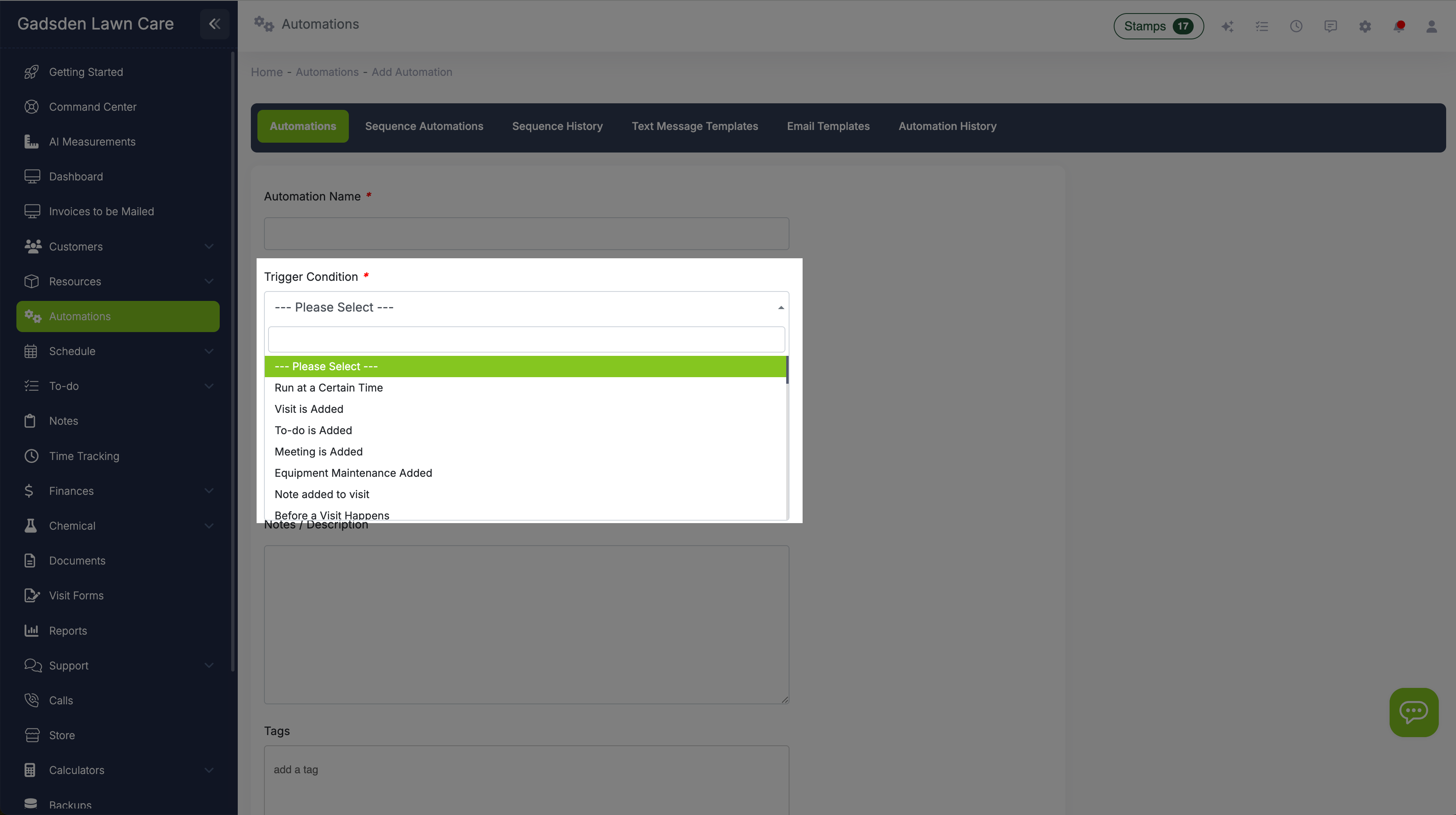
What starts the automation
Choose the event that kicks things off. Triggers include: visit is on the schedule, visit added, visit completed, to-do on schedule, to-do added, meeting on schedule, meeting added, invoice created, invoice past due, estimate sent, estimate accepted, estimate declined, estimate change requested, equipment maintenance scheduled, or a specific date and time you choose. Each trigger pairs with run time options that make sense for that event—reminders fire before, notifications fire after.
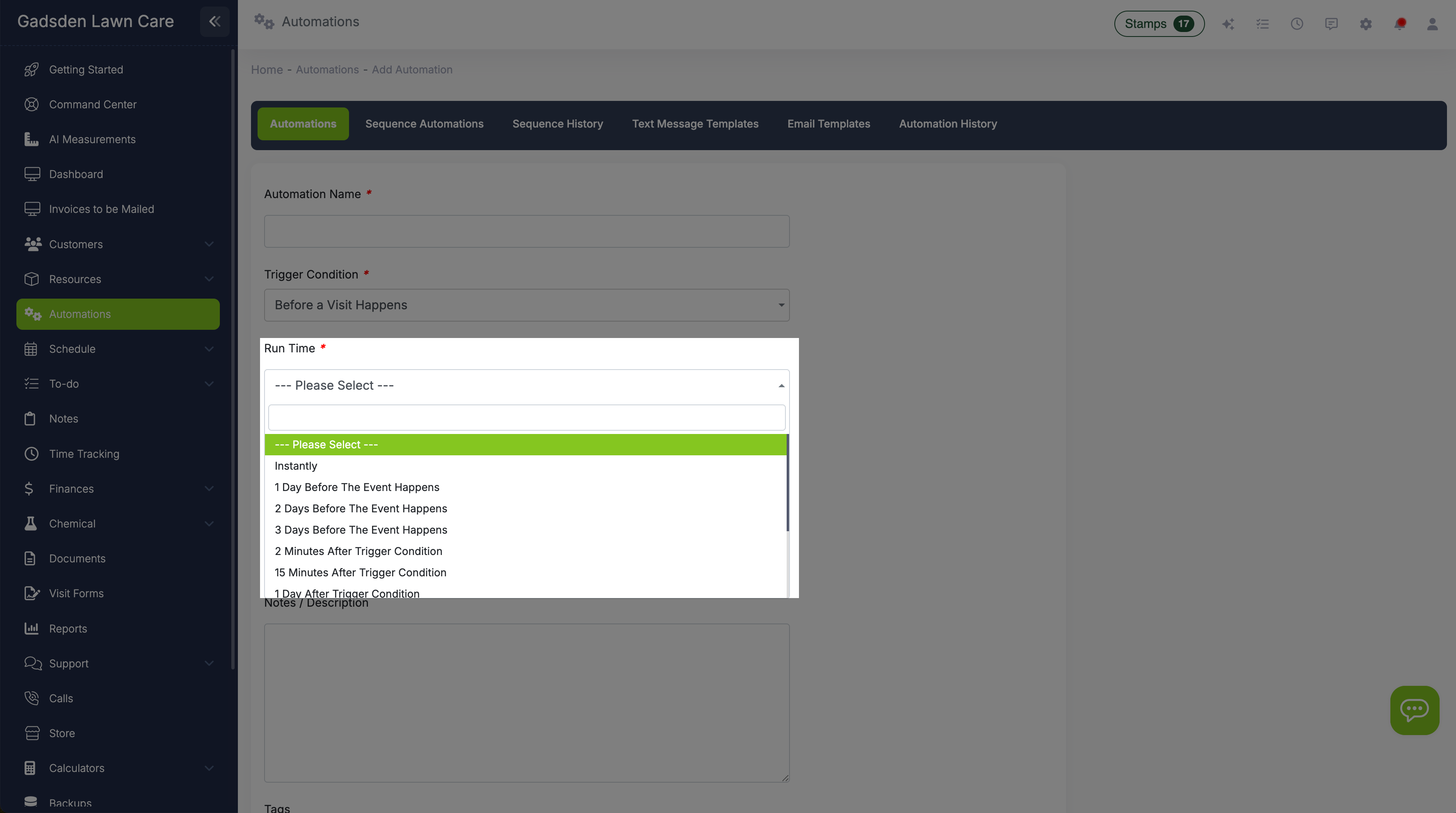
When the automation fires
Set when the action happens relative to the trigger. Options include instantly, 2 minutes to 30 days after the event, or 1 to 3 days before a scheduled event. A visit reminder might fire 1 day before the visit is on the schedule. A completed-visit notification might fire instantly when the crew marks the job done. A past-due reminder might fire 7 days after an invoice was created. LawnPro won't let you save an automation with a timing that doesn't make sense for the trigger—you'll get a clear warning if you try.
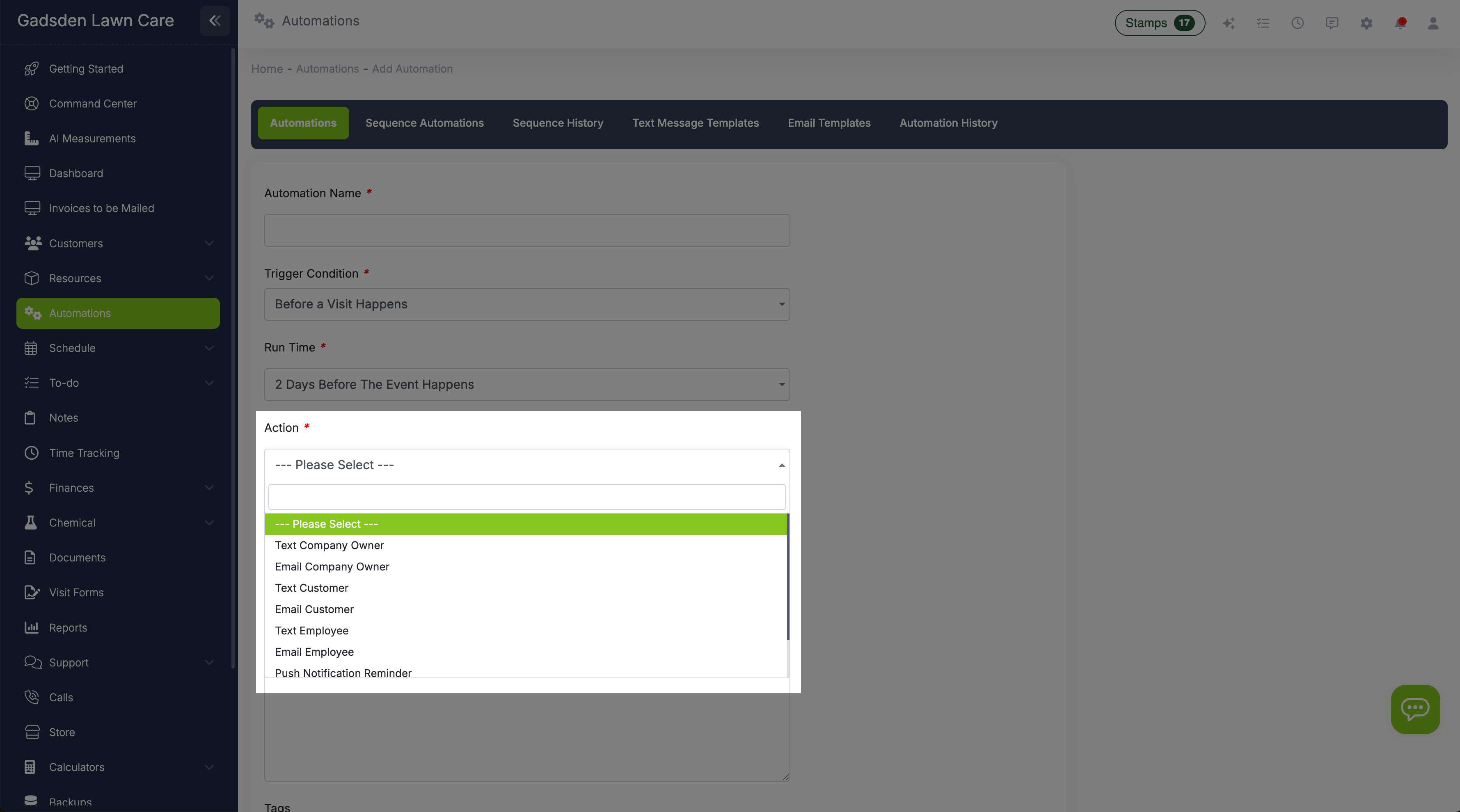
What happens when it fires
Choose what the automation actually does: send an email, send a text message, or send a push notification. Emails and texts use your saved templates with merge tags that auto-fill customer details, company info, invoice amounts, and more. Pick who receives it—the customer, you, a specific employee, or a combination. You can also set text message time windows in your preferences so automated texts never go out before 8am or after 8pm (or whatever hours you set).

Multi-step workflows that run on autopilot
Sequence automations go beyond single-message triggers. A sequence fires a series of actions over time from one starting event—without you touching anything after setup. When a visit is completed, for example, a sequence can send a thank-you text immediately, follow up with a review request 24 hours later, and send a re-engagement offer 7 days after that.
LawnPro supports 17 trigger hooks across customer, job, invoice, and estimate events. Six pre-built sequence templates are ready to activate on day one—including a post-job follow-up series, a win-back sequence for inactive customers, and an estimate follow-up chain. Each sequence supports exit conditions so the chain stops automatically if the customer responds, pays, or takes action—no awkward follow-ups after the job is done.

Build your reputation on autopilot
Every completed job is an opportunity for a five-star review. The problem is remembering to ask. LawnPro's automated review requests send a message to the customer after a job is closed—by email, SMS, or both—with a direct link to leave a review on Google or any platform you choose.
Set the timing once: immediately after job completion, a few hours later, or the next morning. It runs for every customer, every job, without any manual effort. Most lawn care companies that turn this on see a noticeable increase in new reviews within the first 30 days—because customers are happy right after service and the message arrives while the experience is still fresh.
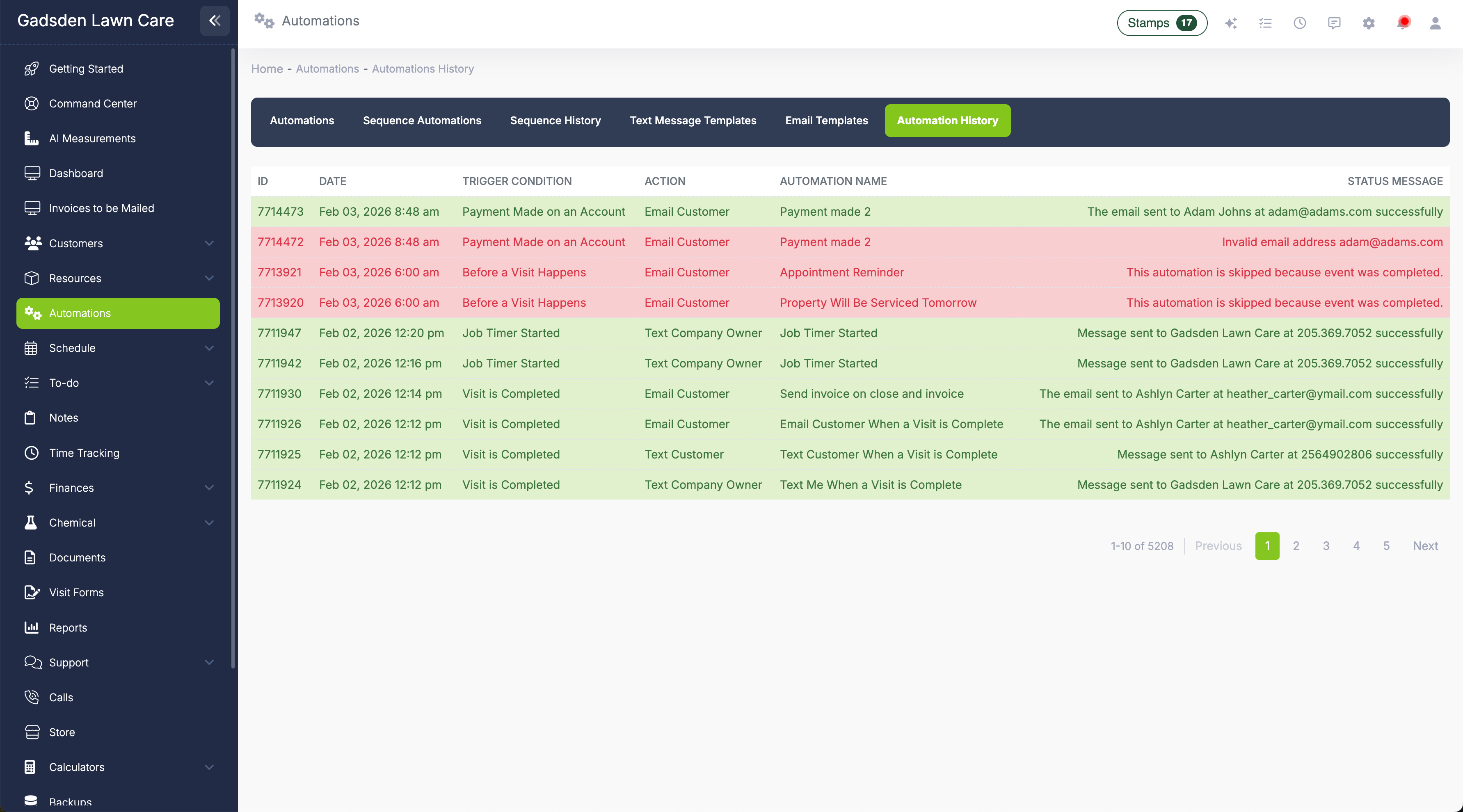
See everything that ran and whether it worked
The Automation History tab logs every automation that has fired—including sequence steps and review requests. Each entry shows the date, trigger condition, action taken, and status. Successful automations show green with a success message. Failed automations show red with the reason they failed—usually a missing or incorrect email address or phone number on the customer profile. Use history to troubleshoot, verify that reminders went out, and confirm your automations are working the way you intended.
Automations your business needs on day one
LawnPro includes pre-built automations you can turn on immediately. Customize the templates, adjust the timing, or create your own from scratch.
Appointment Reminder
Trigger: Visit on schedule
Timing: 1 day before
Action: Text or email the customer
Visit Complete Notice
Trigger: Visit completed
Timing: Instantly
Action: Text or email the customer
Invoice Past Due
Trigger: Invoice past due
Timing: 3, 7, or 14 days after
Action: Email or text payment reminder
Review Request
Trigger: Visit completed
Timing: Hours after or next morning
Action: Email or text with review link
Post-Job Sequence
Trigger: Visit completed
Timing: Multi-step over days
Action: Thank you → review request → upsell offer
Estimate Accepted
Trigger: Estimate accepted
Timing: Instantly
Action: Email customer next steps + notify you
Win-Back Sequence
Trigger: Customer inactive
Timing: Multi-step over weeks
Action: Re-engagement email + follow-up offer
Visit Added to Schedule
Trigger: Visit added
Timing: Instantly or delayed
Action: Notify customer or employee
Estimate Declined
Trigger: Estimate declined
Timing: Instantly
Action: Notify you to follow up
I used to spend every Sunday night sending appointment reminders for Monday. Now LawnPro texts every customer the day before automatically. I don't even think about it anymore—and cancellations are way down because people actually know we're coming.
LawnPro Customer
More control than you'd expect
Automations are powerful, but they're also precise. You control exactly who gets what, when, and under what conditions.
Multi-Step Sequences
Chain multiple messages into a single workflow. One trigger fires a series of emails and texts over days or weeks—automatically, in order, until the sequence completes or an exit condition is met.
Exit Conditions
Sequences stop automatically when a customer takes action—pays an invoice, accepts an estimate, books a job. No awkward follow-up messages after the deal is done.
Automated Review Requests
Send a review request automatically after every completed job—by email or SMS. Most companies that turn this on see a noticeable increase in Google reviews within the first 30 days.
Customer-Specific Rules
Turn automations on or off for individual customers. Disable past-due reminders for a customer who always pays late but always pays. Keep general reminders running for everyone else.
Invoice & Estimate Rules
Control which invoices and estimates trigger automations. Run a past-due reminder only on invoices above a certain amount, or fire a different sequence for high-value estimates.
Templates with Merge Tags
Automations use your saved email and text templates. Merge tags auto-fill customer name, company name, invoice amounts, and other details so every message feels personal.
Text Message Time Windows
Set quiet hours so automated texts never go out too early or too late. If an automation fires at 11pm, the text waits until your morning window opens.
6 Pre-Built Sequence Templates
Start with proven sequence templates—post-job follow-up, win-back campaign, estimate follow-up chain, and more. Activate them in one click or customize them to match your voice.
Build Your Own
Don't see what you need? Create custom automations or sequences from scratch. Pick any trigger, any timing, and any action. Your workflow, your rules.
What are workflow automations for lawn care?
Workflow automations for lawn care let you set up rules that send emails, text messages, or push notifications automatically when certain events happen in your business. Instead of manually texting every customer the day before their service, you create an automation that fires a reminder text whenever a visit is on the schedule for the next day. You set it up once and it runs for every customer, every time.
LawnPro's automation engine is built around a simple three-part formula: trigger condition, run time, and action. Triggers include visits, invoices, estimates, meetings, to-dos, and equipment maintenance. Run times range from instantly to 30 days after an event, or 1 to 3 days before a scheduled event. Actions include sending emails, texts, and push notifications using templates with merge tags that personalize every message.
Beyond single-message automations, LawnPro supports full sequence automations—multi-step workflows that fire a series of messages over time from a single trigger. A completed job can automatically trigger a thank-you text, a review request the next morning, and a follow-up upsell offer a week later. Sequences support 17 trigger hooks and include exit conditions that stop the chain if the customer responds or takes action, so you're never sending awkward follow-ups after the deal is done. Six pre-built sequence templates are ready to activate immediately.
Automated review requests are one of the highest-ROI automations for lawn care companies. Most customers are happy right after service—the problem is remembering to ask. LawnPro sends a review request by email or SMS automatically after each completed job, with a direct link to leave a Google review. Companies that turn this on consistently see their review count grow within the first month without any manual effort. Combined with text message quiet hours, customer-level controls, and a full automation history log, LawnPro gives you automation that's powerful but never out of control.
Frequently asked questions
Go to the Automations tab in the side menu. You'll see pre-built automations you can turn on, or click to create a new one. Choose a trigger condition, set the run time, pick an action (email, text, or push notification), select the template, and save. The automation runs every time that trigger condition is met.
Sequence automations are multi-step workflows triggered by a single event. Instead of one message, a sequence sends a series of messages over time—automatically, in order. For example: a thank-you text immediately after a job, a review request 24 hours later, and a seasonal upsell offer 7 days after that. Sequences support exit conditions that stop the chain if the customer responds or takes the desired action.
Set up a review request automation triggered by visit completion. Choose your timing—immediately, a few hours later, or the next morning—and select your email or SMS template with a link to your Google review page. LawnPro sends it automatically after every completed job. No manual effort required.
Triggers include: visit on schedule, visit added, visit completed, to-do on schedule, to-do added, meeting on schedule, meeting added, invoice created, invoice past due, estimate sent, estimate accepted, estimate declined, estimate change requested, equipment maintenance scheduled, and specific date/time. Sequence automations support 17 trigger hooks across customer, job, invoice, and estimate events.
You can set exit conditions based on customer actions—such as paying an invoice, accepting an estimate, or booking a job. When the exit condition is met, the sequence stops automatically so the customer doesn't keep receiving follow-up messages after they've already taken action.
Yes. Customer-specific automations let you turn individual automations on or off for specific customers. You can also set invoice-specific and estimate-specific rules to control which documents trigger automations.
Each automation step sends one type of communication. If you want both email and text for the same trigger, create two automations—or add both as separate steps inside a sequence—each using the appropriate channel.
No—not if you set your text message time windows. In your preferences, set the earliest and latest times automated texts can go out. If an automation fires outside those hours, the text waits until the window opens.
The Automation History tab logs every automation that runs, including sequence steps and review requests. Failed automations show in red with the reason—usually a missing or invalid email address or phone number. Successful automations show green.
Basic automations are available on all plans. Sequence automations and automated review requests are available on the Grow and Plus plans. If you want to send automations by text, your plan needs to include texting or you can add it as an add-on.
Explore more features
See what else LawnPro can do for your business.
2-Way Text Messaging
Send and receive texts from a dedicated business number. Text invoices, estimates, and reminders. Full conversation history.
Invoicing
Create, send, and automate invoices by email, text, or mail. Auto-invoicing, online payments, and past-due tracking.
Zapier Integration
Connect LawnPro to 3,000+ apps for advanced workflows. Build triggers and actions that extend beyond what built-in automations can do.
Resources
Help Articles
Guides on triggers, timing, sequences, review requests, and troubleshooting.
Automation Help Articles →Video Tutorials
Watch how to set up automations, build sequences, and activate review requests.
Watch Videos →