Know where every hour goes
Track employee time with GPS clock-in/out, assign hourly rates by task, compare budgeted vs actual hours, and approve timesheets before payroll. See who's clocked in right now, what they're working on, and where they are—all from one screen.
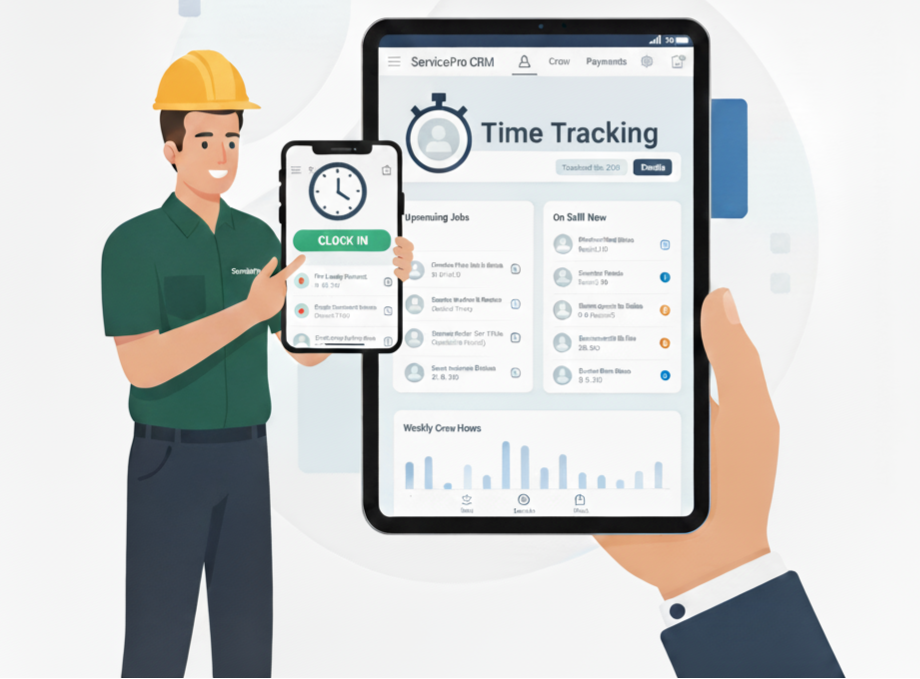
From clock-in to payroll in four steps
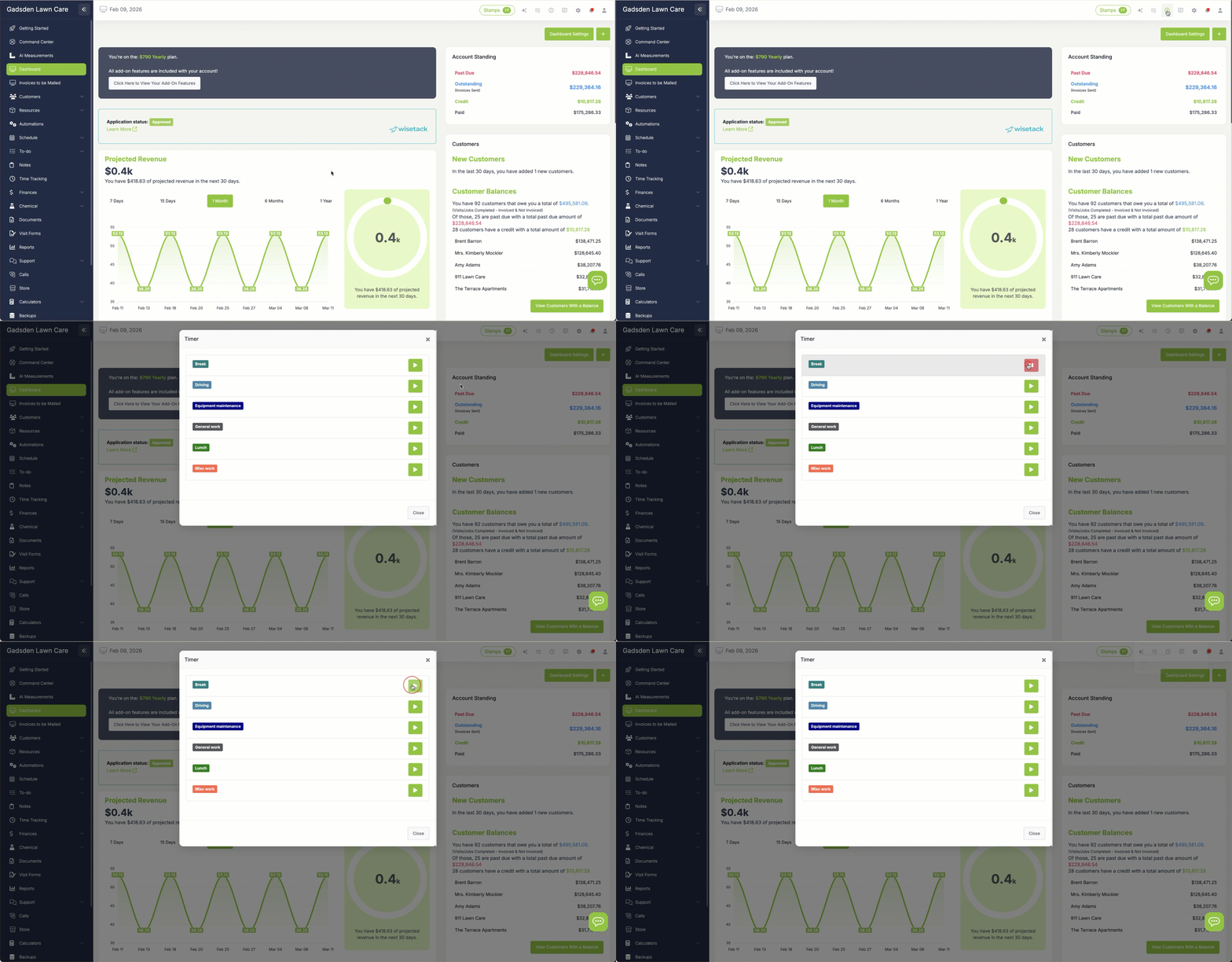
One tap to start the day, one tap to end it
Employees clock in and out from the clock icon at the top of LawnPro—on desktop or the mobile app. GPS location is captured with every clock event so you can verify they're where they should be. You can require employees to clock in before they can even see the schedule, so nobody forgets to start their timer. The Active Time Clocks tab shows you who's currently on the clock in real time, with a blinking indicator and start time for each active employee. Need to clock someone in or out from the office? You can do that too.
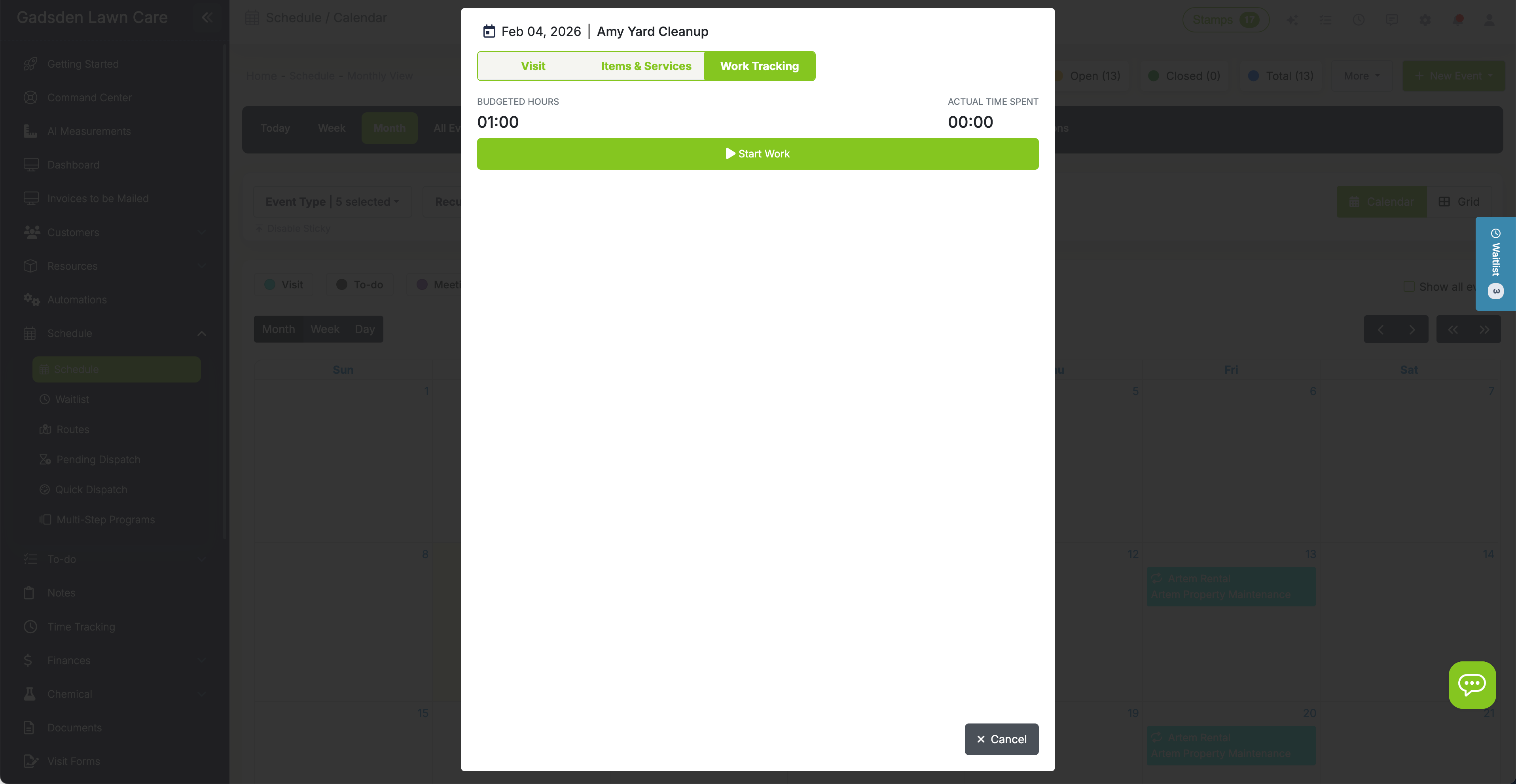
Track time on every visit, not just the whole day
Employees can start a job timer directly from a scheduled visit by clicking "Start Work." The timer runs until they mark the job complete, and that time is logged against the specific visit, customer, and property. This gives you per-job time data—not just total daily hours. When you look at the time log later, you see exactly how long each visit took and whether it matched the budgeted hours you set. If an employee is clocked in to general time when they start a job, the timer switches seamlessly.
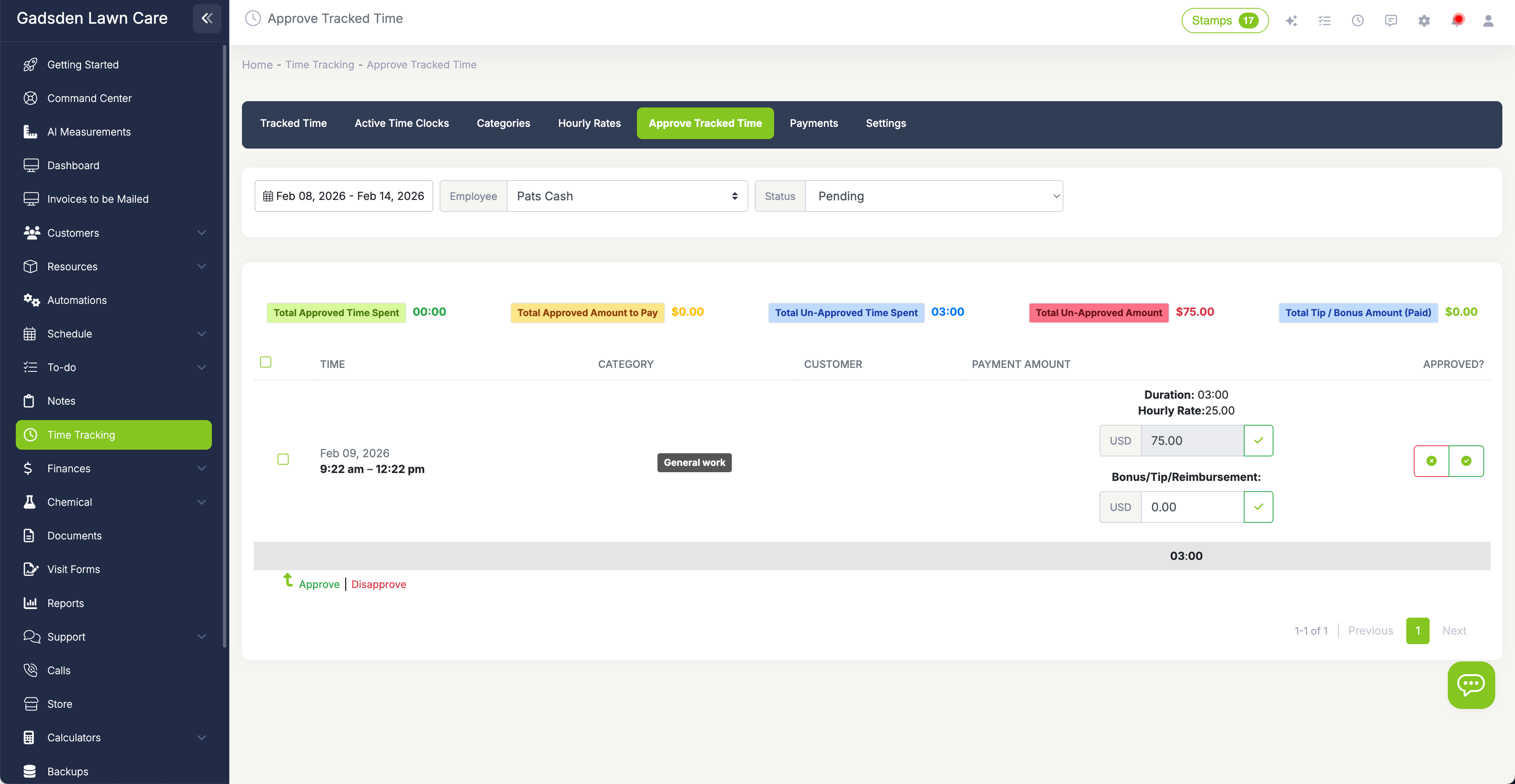
Review every entry before it hits payroll
The approval workflow shows each employee's tracked time for a selected period. Review the entries, adjust anything that looks off, and approve. During approval you can set the payment amount and add bonuses. Filter by status to see pending, approved, or all entries. Once approved, the hours are locked and ready for payroll export. Nothing goes to payroll without your sign-off.
Different rates for different work
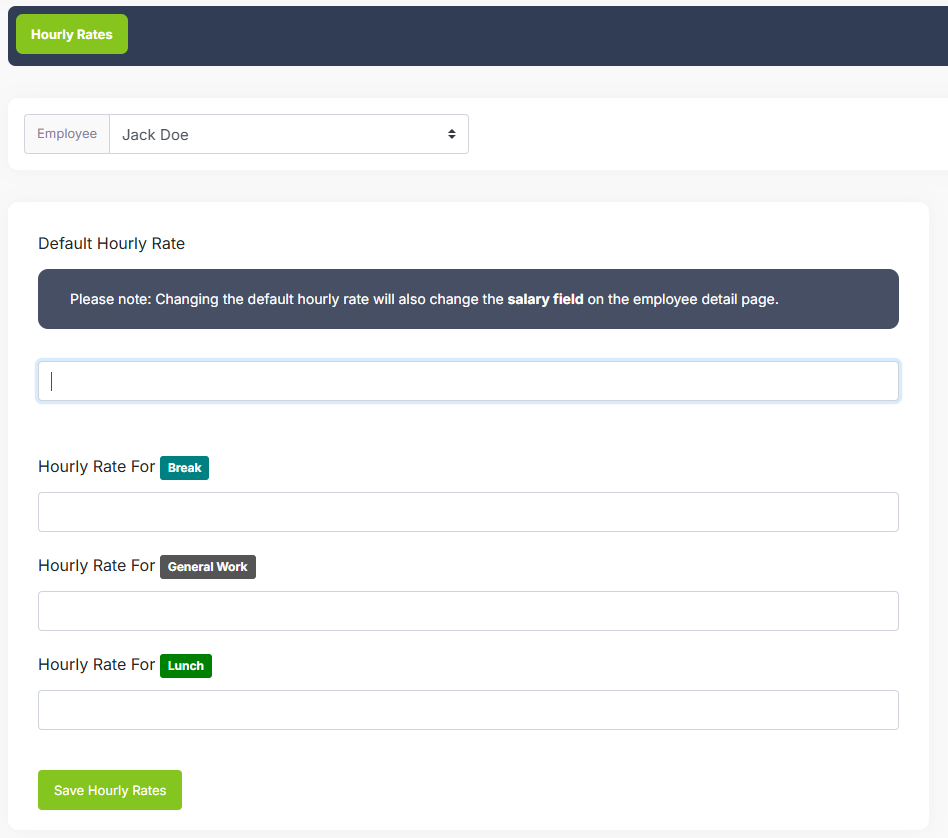
Create hourly rate categories for every type of work your team does—mowing, driving, chemical application, equipment maintenance, general labor, or anything else. Assign rates per employee so the same category can pay differently based on experience or role. When time is tracked against a category, the correct rate applies automatically. Your payroll totals reflect what each person actually did, not just how many hours they were on the clock.

Budget the time. Track the reality.
Set default budgeted hours for visits, meetings, and to-dos in your settings. Every new event pre-fills with the default, but you can adjust it per job when some properties take longer than others. When the work is completed and time is tracked, compare budgeted hours to actual hours to spot crews that are consistently running over or finishing ahead of schedule.
This data feeds directly into profitability decisions. If a property is budgeted for 45 minutes but consistently takes 90, you know it's time to reprice. If a crew finishes every job under budget, you know they're running efficiently—or you can reward them with Pay for Performance bonuses.
We had no idea one of our crews was spending 30% more time per yard than the others until we started tracking budgeted vs actual. Turned out they were using the wrong mowing pattern. Fixed that one thing and saved 8 hours a week across the whole team.
LawnPro Customer
Built for crews in the field
Time tracking that actually works for lawn care and field service—not a generic office tool forced into the field.
GPS on Every Clock Event
Location is captured when employees clock in, clock out, start a job, and stop a job. Know where each event happened without asking.
Require Clock-In to View Schedule
Force employees to clock in before they can see their work for the day. No more forgetting to start the timer because the schedule was too distracting.
Active Time Clocks Dashboard
See who's currently on the clock with a live view. Blinking indicators show active employees, start times, and current duration. Clock anyone in or out from the office.
Budgeted vs Actual Hours
Set budgeted hours on every visit, then compare to actual time tracked. Spot overruns, find efficiency gaps, and make repricing decisions backed by data.
Pay for Performance Ready
Time tracking data connects directly to Pay for Performance. Track both hourly earnings and performance-based pay, and always pay your employees the higher amount.
Approval Before Payroll
Review and approve every time entry before it goes to payroll. Adjust entries, add bonuses, and lock approved hours. Nothing gets paid without your sign-off.
What is time tracking for lawn care?
Time tracking for lawn care means recording how long your employees work each day and how long they spend on each job. Instead of relying on handwritten timesheets or guessing at hours, your team clocks in and out from their phone and the data is captured automatically with GPS verification. You know who worked, for how long, where they were, and what they were doing.
LawnPro's time tracking goes further than basic clock-in/out. Set budgeted hours on every visit so you can compare estimated time to actual time worked. Create hourly rate categories for different types of work—mowing, driving, chemical application, equipment maintenance—so payroll reflects what each person actually did. Employees can start job timers directly from scheduled visits, giving you per-property time data that feeds into profitability analysis.
The approval workflow lets you review all tracked time, make adjustments, set payment amounts and bonuses, and approve hours before they go to payroll. Combined with Pay for Performance, you can calculate both hourly pay and performance-based earnings and always pay your employees whichever is higher—rewarding efficiency without penalizing slower days. Time tracking is available as an add-on for $10 per month with unlimited employees.
Frequently asked questions
Employees tap the clock icon at the top of LawnPro on desktop or the mobile app. If you enable "require clock-in," they see a clock-in screen before they can view the schedule. They can also start a job timer directly from a visit on the schedule by clicking "Start Work." GPS location is recorded with every clock event.
Yes. When an employee clicks "Start Work" on a scheduled visit, the timer runs against that specific visit, customer, and property. You get per-job time data, not just total daily hours. This is what allows you to compare budgeted vs actual time at the visit level.
Set default budgeted hours for visits, meetings, and to-dos in your time tracking settings. When you create a new event, it pre-fills with the default. You can adjust it per event if some properties take more or less time. After the work is done and time is tracked, you compare the budgeted hours to the actual time logged.
Yes. Create hourly rate categories for mowing, driving, chemical application, general labor, or any other type of work. Assign rates per employee so the same task can pay differently based on experience or role. When time is logged against a category, the correct rate applies automatically.
Go to the Time Tracking tab and review each employee's hours for the period. You can adjust entries, set payment amounts, add bonuses, and then approve. Filter by status to see pending or approved entries. Once approved, hours are locked and ready for payroll export. You have full control before anything gets paid.
No. GPS location is captured only at clock events—when an employee clocks in, clocks out, starts a job timer, or stops a job timer. LawnPro does not continuously track location throughout the day. The GPS data tells you where each specific clock event happened.
Some LawnPro plans include time tracking. If your plan does not, you can add unlimited time tracking for all employees for $10 per month. There's no per-employee charge—one flat price covers your entire team.
Explore more features
See what else LawnPro can do for your business.
Pay for Performance
Calculate hourly and performance-based earnings and always pay your employees the higher amount. Reward efficiency, retain top talent.
Scheduling
Build and manage your schedule with drag-and-drop simplicity. Assign crews, set recurring visits, and keep everyone on the same page.
Routing
Optimize routes with interactive maps, polygon selection, and density analytics. Less windshield time means more billable hours.
Resources
Help Articles
Step-by-step guides on clock-in, hourly rates, approval, and exporting time.
Time Tracking Help Articles →Video Tutorials
Watch how to set up time tracking, create rate categories, and approve hours.
Watch Videos →