New Year Savings: 40% off for your first 3 months — ends soon, don't miss out!

Claim 40% Off

New Year Savings

Claim 40% Off
Customer Statements

Know who owes you. Collect what you're owed.

See every outstanding balance at a glance, broken down by how long it's been past due. Click into any customer for the full transaction ledger. Email or print statements one at a time or batch-send to everyone who's overdue—all from a single page.

Start Free Trial
No credit card required
LawnPro customer statements page showing aging summary cards, customer list with balances, and slide-out statement detail panel
40,000+ service businesses trust LawnPro
4.8 / 5 based on 7,531 reviews

How customer statements work in LawnPro

Aging summary cards showing total outstanding, current, 1-30 days, 31-60 days, 61-90 days, and 90+ days past due with customer counts and dollar amounts
Aging at a Glance

Six cards. Complete picture.

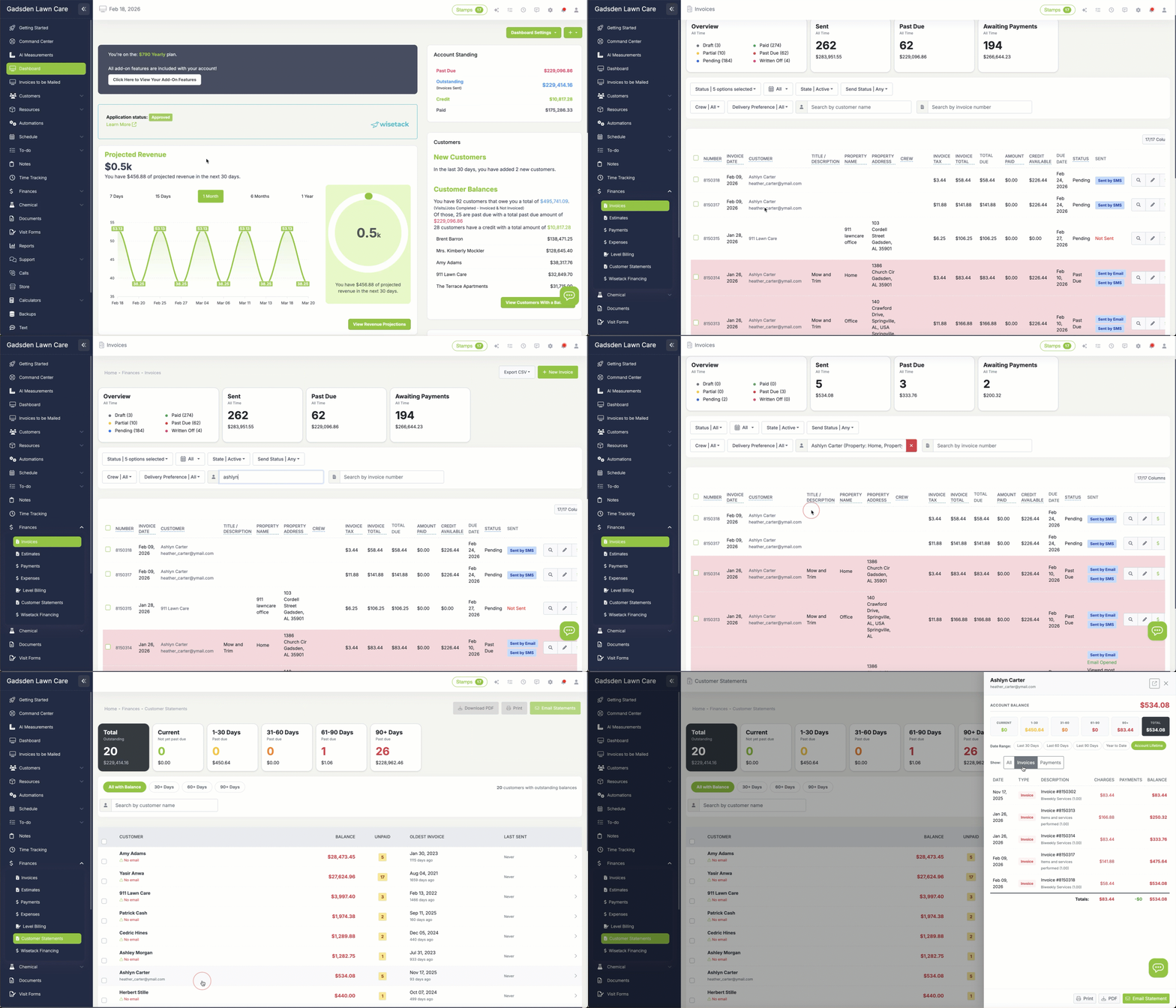
The moment you open Customer Statements, six aging cards show you exactly where your receivables stand. Each one displays the number of customers in that aging bucket and the total dollar amount. The dark "Total" card on the left anchors everything—total customers with a balance and total outstanding.

Below the cards, aging filter chips let you narrow the list instantly. Click 30+ Days to see only customers who are past due. Click 90+ Days to focus on the accounts that need the most attention. The customer count updates in real-time as you filter.

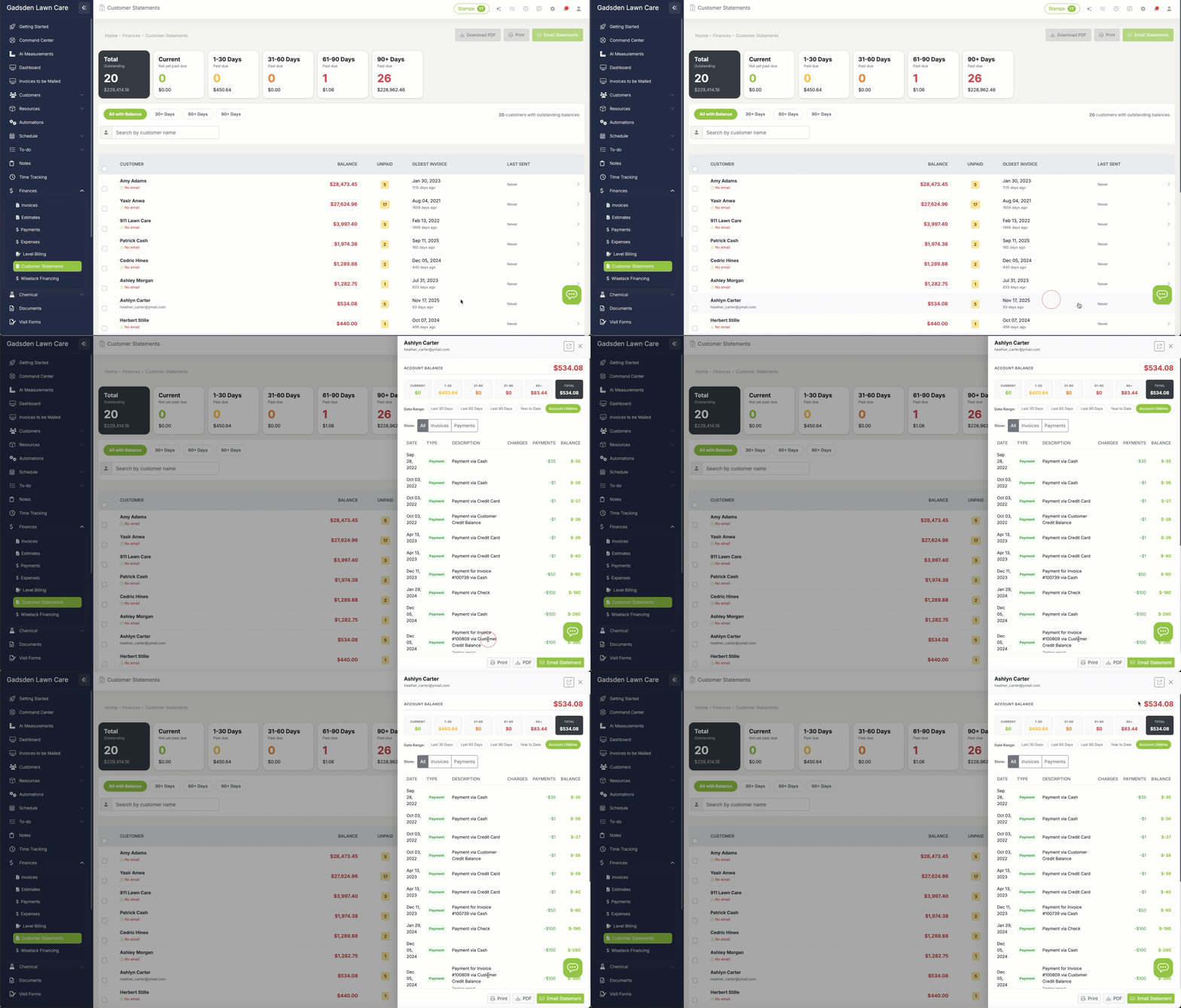
Slide-out statement detail panel showing account balance, aging breakdown, date range presets, and full transaction ledger with running balance
Customer Detail

Full transaction history in one click

Click any customer row and a detail panel slides in from the right. At the top: their total account balance and a compact aging breakdown. Below that: the full transaction ledger.

Every invoice, payment, and credit is listed with a running balance so you can trace exactly how the amount got to where it is. Use the date range presets (Last 30 Days, Last 60 Days, Year to Date, Account Lifetime) to zoom in on a specific period. Use the transaction type filter to show only invoices or only payments.

From the panel you can Print, download a PDF, or Email the statement directly—without leaving the page.

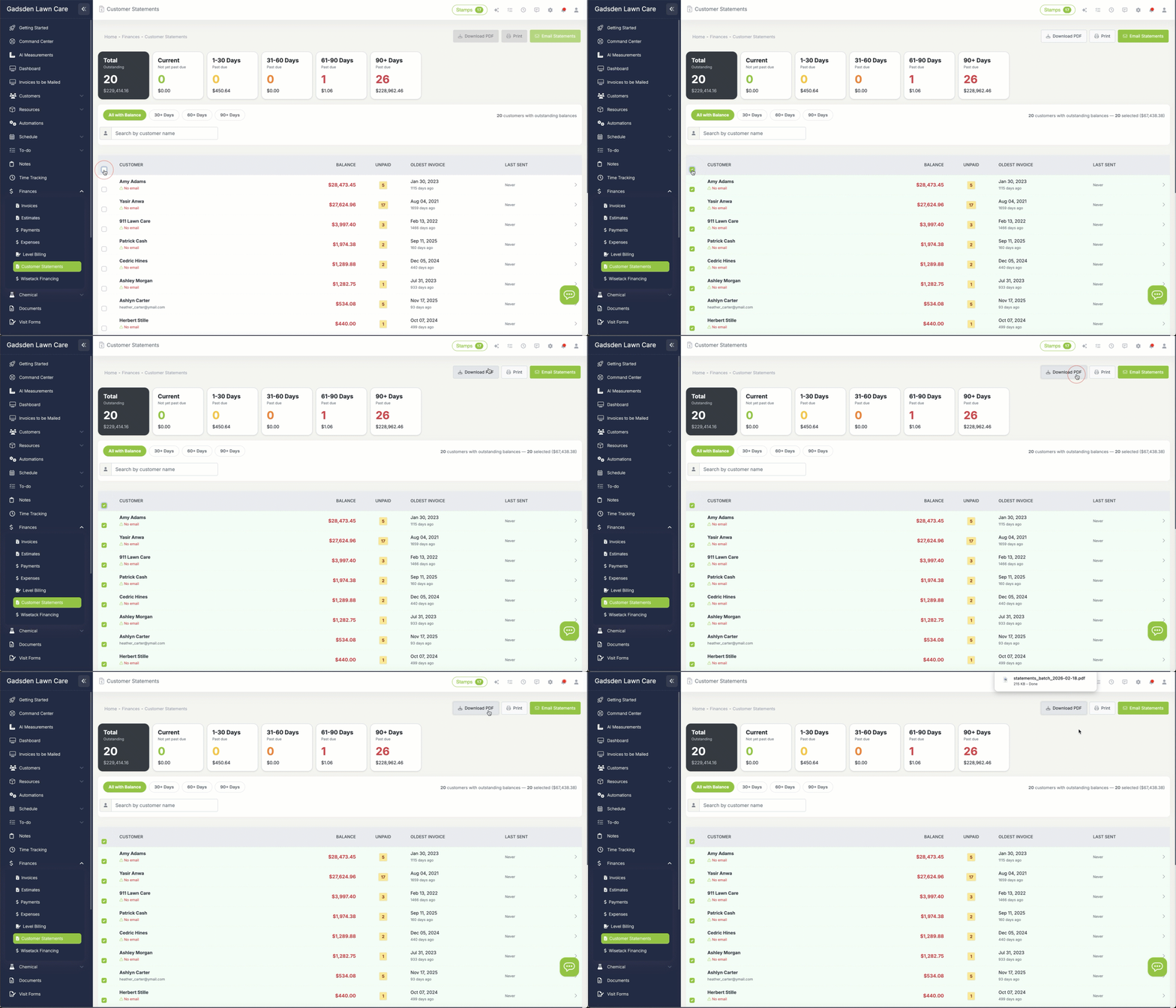
Customer list with multiple rows selected via checkboxes and batch action buttons for Download PDF, Print, and Email Statements active at top of page
Batch Send

Email 50 statements in 10 seconds

Need to send statements to everyone who's overdue? Select customers with the checkboxes—or click the header checkbox to select all—and hit Email Statements. LawnPro sends each customer their own personalized statement with their transactions and balance.

The workflow is fast: filter to 30+ Days, select all, click Email Statements, done. A progress modal shows you the send status and confirms when everything is complete. You can also batch-download PDFs or batch-print for customers who prefer paper.

Customers without an email on file are flagged with a warning icon so you know exactly who can't receive electronic statements.

Recent batch sends section showing date, customer count, send method, aging filter used, sent by name, and completion status
Send History

Full audit trail of every statement sent

Below the customer list, the Recent Batch Sends section logs every batch you've sent: how many customers, which method (email, print, PDF), which aging filter was applied, who sent it, and when.

Inside the customer detail panel, each customer also has their own Send History—showing every statement they've received, the date range it covered, the total due at the time, and who sent it. You'll never have to wonder "did we already send them a statement this month?"
Before and after comparison showing manual invoice chasing vs organized statement workflow with aging visibility
Why Statements

Stop chasing invoices one at a time

Most lawn care companies handle collections by scrolling through the invoice list, finding past-due items, and sending individual reminders. It works when you have 20 customers. It doesn't work when you have 200.

Customer Statements flips the workflow. Instead of chasing invoices, you're looking at customers—each one with their complete account picture. The aging cards tell you where the money is. The filters let you prioritize. And batch send lets you reach everyone who's overdue in a single click. Monday morning statements become a 5-minute routine instead of an hour-long headache.

We used to spend every Monday morning going through overdue invoices one by one. Now I filter to 30+ days, select all, and hit send. Statements go out to 60+ customers in under a minute. Our average days to payment dropped by almost two weeks in the first month.
LP

LawnPro Customer

Everything you need to collect faster

Customer Statements brings aging visibility, transaction detail, and batch sending into one streamlined page.

Aging Summary Cards

Six cards show total outstanding, current, 1-30, 31-60, 61-90, and 90+ days past due—with customer counts and dollar amounts.

One-Click Aging Filters

Filter to 30+, 60+, or 90+ days past due with a single click. The customer list and count update instantly.

Full Transaction Ledger

Every invoice, payment, and credit with a running balance. Filter by date range or transaction type.

Batch Email Statements

Select multiple customers and email personalized statements in one click. A progress modal confirms delivery.

PDF & Print

Download individual or batch PDFs. Print statements for customers who prefer paper or don't have email on file.

Complete Send History

Batch log and per-customer history show who received statements, when, and what they owed at the time.

Slide-Out Detail Panel

Click any customer to see their full account without leaving the page. Review, then send—all in one flow.

Search & Find

Find any customer by name, company, or email. Combined with aging filters for precise targeting.

Custom Footer Message

Add payment instructions, late fee policies, or a friendly reminder that appears on every statement you send.

What are customer statements for lawn care?

A customer statement is a summary of everything a customer owes you. It lists their invoices, payments, and credits over a period of time, along with a running balance that shows exactly how the current amount due was reached. Statements are the standard way service businesses remind customers about outstanding balances and encourage timely payment.

In LawnPro, the Customer Statements page gives you a single view of every customer with an outstanding balance. Aging summary cards break down your receivables by how long they've been past due—so you can see at a glance how much is current, how much is 30 days late, and how much is 90+ days overdue. Click into any customer to see their full transaction ledger, then email, print, or download a PDF statement without leaving the page.

The real time-saver is batch sending. Filter to the aging bucket you want—say, everyone 30+ days past due—select all, and click Email Statements. Each customer gets a personalized statement with their own transactions and balance. What used to take an hour of manual work becomes a 5-minute Monday morning routine. Combined with the aging visibility, send history, and per-customer detail panel, it's a complete collections workflow built for service businesses that don't have a dedicated bookkeeper.

Frequently asked questions

What is a customer statement?

A customer statement is a summary of a customer's account showing all invoices, payments, and credits over a period of time, along with their current outstanding balance. It's the standard way to remind customers what they owe and encourage timely payment.

How do I send statements to multiple customers at once?

Use the checkboxes to select the customers you want, then click Email Statements at the top of the page. LawnPro sends each customer their own personalized statement with their transactions and balance. You can filter by aging first—for example, select only 30+ days past due—then select all and send.

What does the aging summary show?

The aging summary cards at the top of the page break down your outstanding receivables by how long they've been past due: Current (not yet due), 1-30 days, 31-60 days, 61-90 days, and 90+ days. Each card shows the number of customers and total dollar amount in that bucket, so you can see exactly where your money is tied up.

Can I see a customer's full transaction history before sending?

Yes. Click any customer row to open the detail panel. You'll see their complete transaction ledger—every invoice, payment, and credit—with a running balance column. You can filter by date range (Last 30 Days, Last 60 Days, Year to Date, or Account Lifetime) and by transaction type (All, Invoices, or Payments).

What if a customer doesn't have an email address?

Customers without an email address show a warning icon in the list. You can still generate a PDF or print their statement—you just can't email it until an email address is added to their customer profile.

Can I customize the statement message?

Yes. Go to Finances → Statements → Settings to add a footer message that appears on every statement. Many businesses use this for payment instructions, late fee reminders, or a thank-you note.

How do I know if a statement was already sent to a customer?

Two ways. The "Last Sent" column in the customer list shows the date of the most recent statement. And inside the detail panel, the Send History section shows every statement sent to that customer—including the date range, total due, method, and who sent it.

What's the difference between a statement and an invoice?

An invoice is a bill for a specific service or set of services. A statement is a summary of the entire account—all invoices, payments, and credits—showing the customer's overall balance. Think of invoices as individual line items and statements as the monthly account summary that shows everything together.

Is this feature included in my plan?

Customer Statements is available on paid plans that include invoicing features. There's no separate add-on or per-statement fee.

Ready to get paid faster?

Try LawnPro free and send your first batch of customer statements. See who owes you and collect what you're owed.

Start Free Trial

Explore more features

See what else LawnPro can do for your business.

Invoicing

Create, send, and automate invoices. Statements pull directly from your invoice and payment data.

Auto-Charge on File

Charge cards automatically when invoices are created. Fewer outstanding balances means fewer statements to chase.

Level Billing

Spread annual service costs into equal monthly payments. Predictable revenue year-round.

Resources

Help Articles

Guides on sending statements, understanding aging, and managing collections.

Statements Help →
Video Tutorials

Watch how to send statements and manage your collections workflow.

Watch Videos →
Talk to Support

Need help with statements? We're here 7am-7pm CST, 7 days a week.

Contact Us →