Invoice created. Card charged. Done.
Auto-charge runs the moment an invoice is created—no manual processing, no chasing payments, no logging in to charge cards one at a time. Save a customer's credit card or ACH bank account on file, enable auto-charge, and every invoice pays itself. Combine with auto-invoicing for a billing pipeline that runs on complete autopilot.
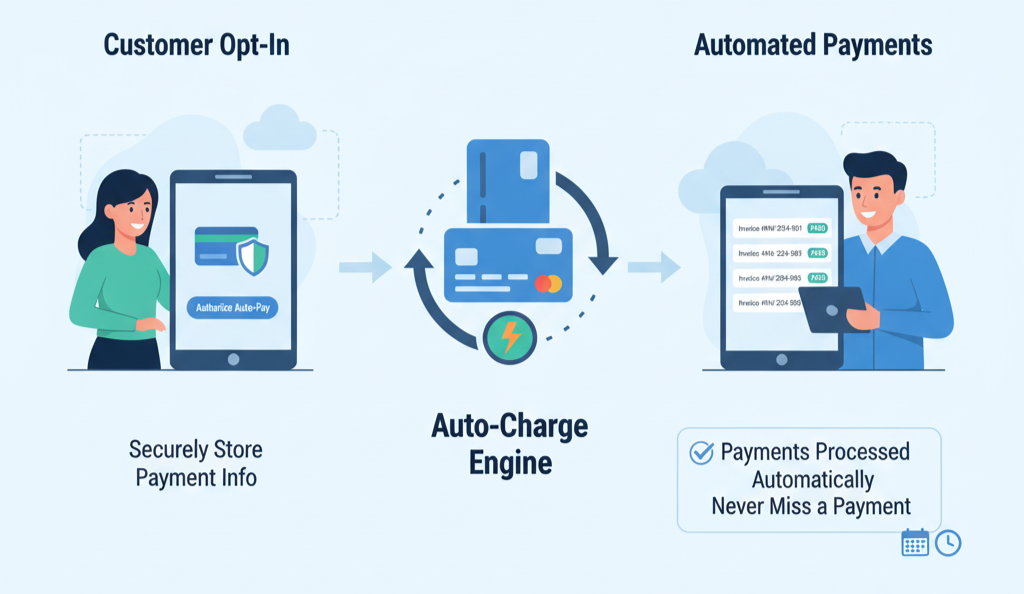
How auto-charge works, step by step
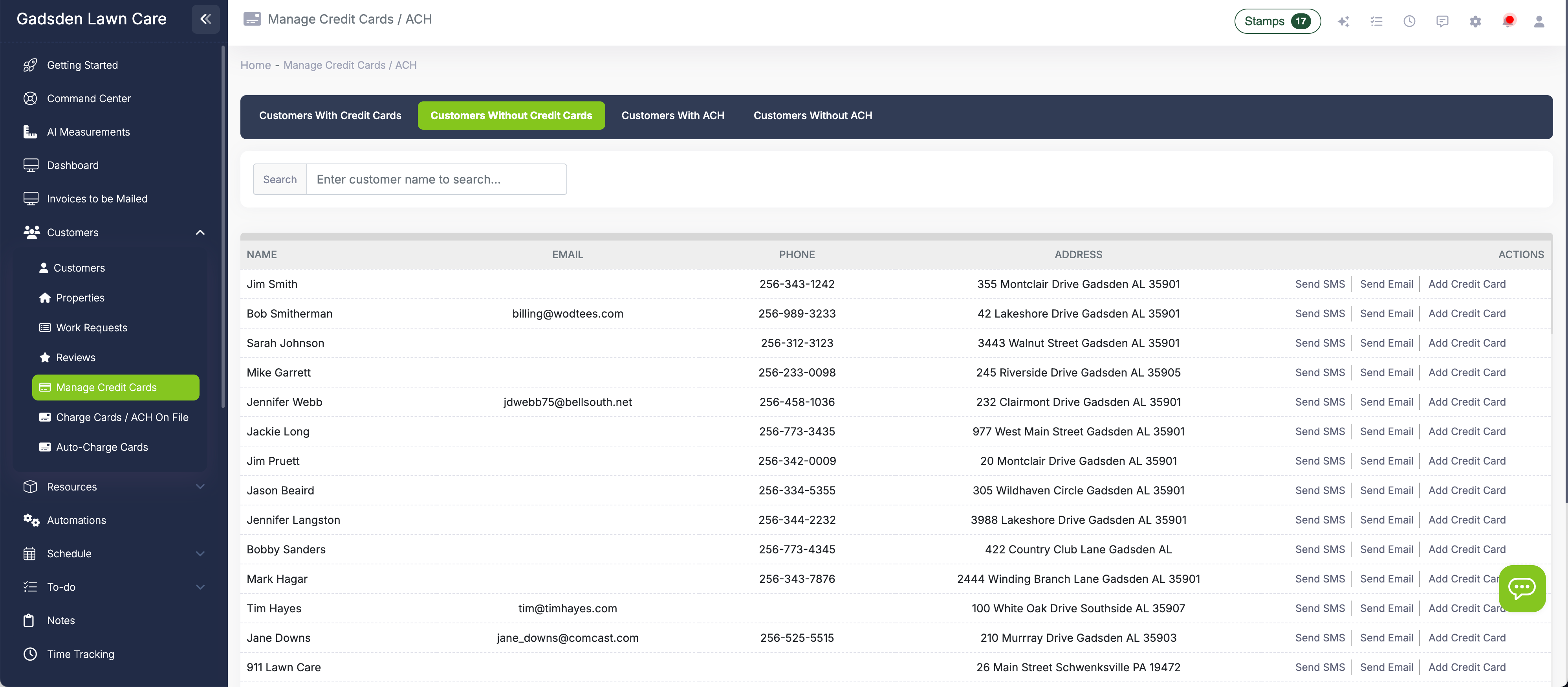
Get a card or bank account on file
There are two ways to get a payment method on file. You can enter the card directly on the customer's profile in LawnPro. Or go to Customers → Manage Credit Cards, switch to the "Customers Without Credit Cards" tab, and send a text or email requesting the customer add their card through the portal. For ACH, the customer connects their bank account through the portal using Plaid. Either way, the payment method is saved securely via Stripe and ready to charge.
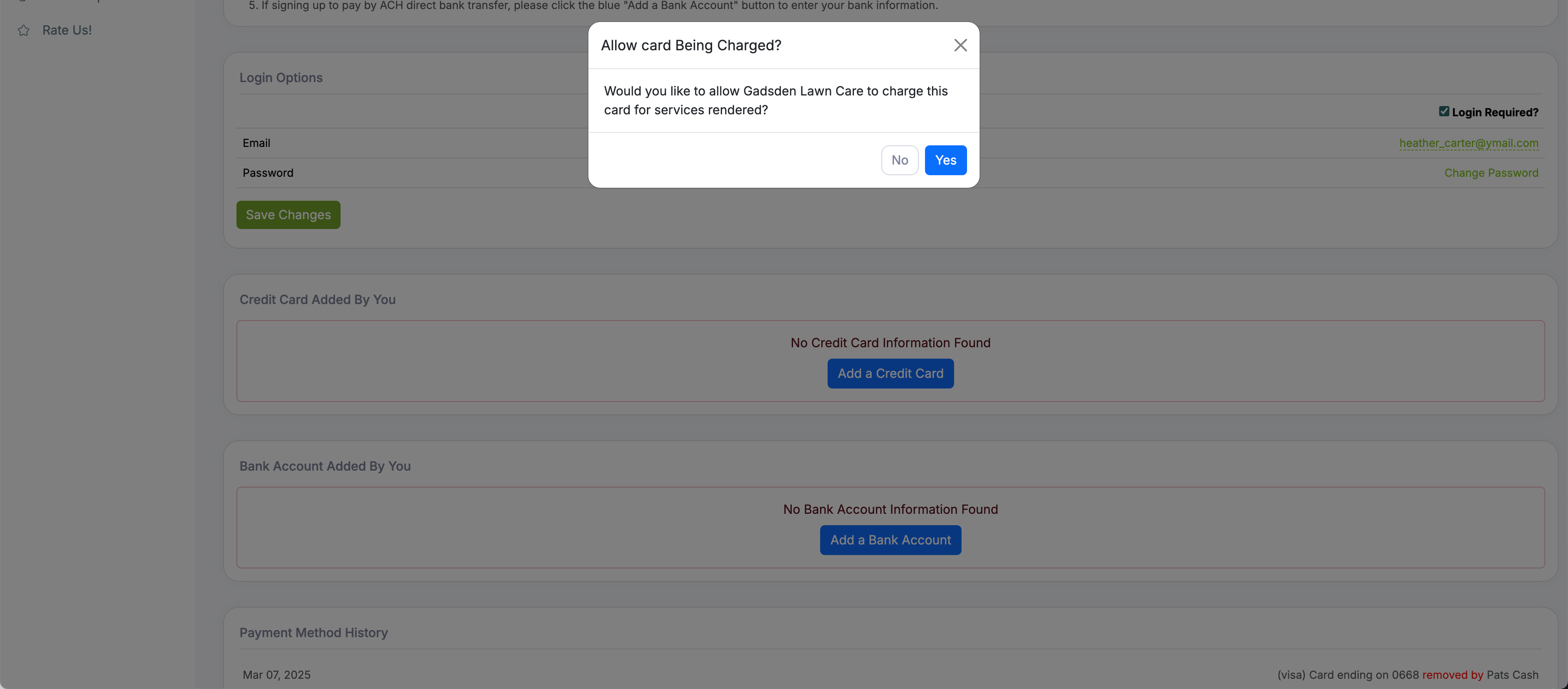
The customer decides what you can charge
When a customer adds a card in the portal, they get a popup asking if they want to allow you to charge this card. If they select yes, you can charge it manually any time. They also see an option to enable auto-charge—which means their card is charged automatically whenever a new invoice is created on their account. Both authorizations are controlled by the customer, giving them confidence and giving you permission to collect payment without follow-up.
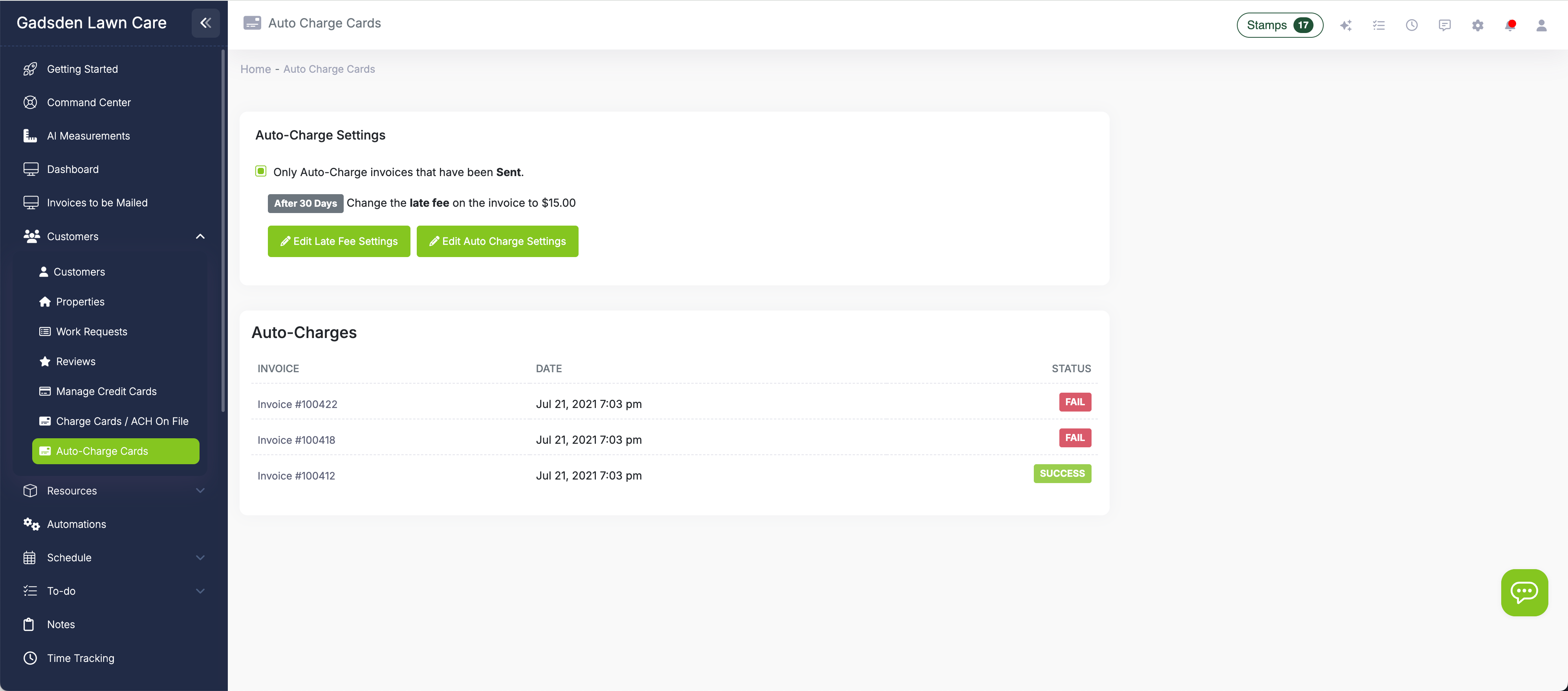
The invoice is created—the charge happens instantly
Once auto-charge is authorized and you create an invoice for that customer, LawnPro automatically charges their saved payment method for the invoice amount. It doesn't matter how the invoice was created—manually, through auto-invoicing after a completed visit, or through level billing. The moment the invoice exists, the charge runs. The payment is recorded, the invoice is marked paid, and you're done.
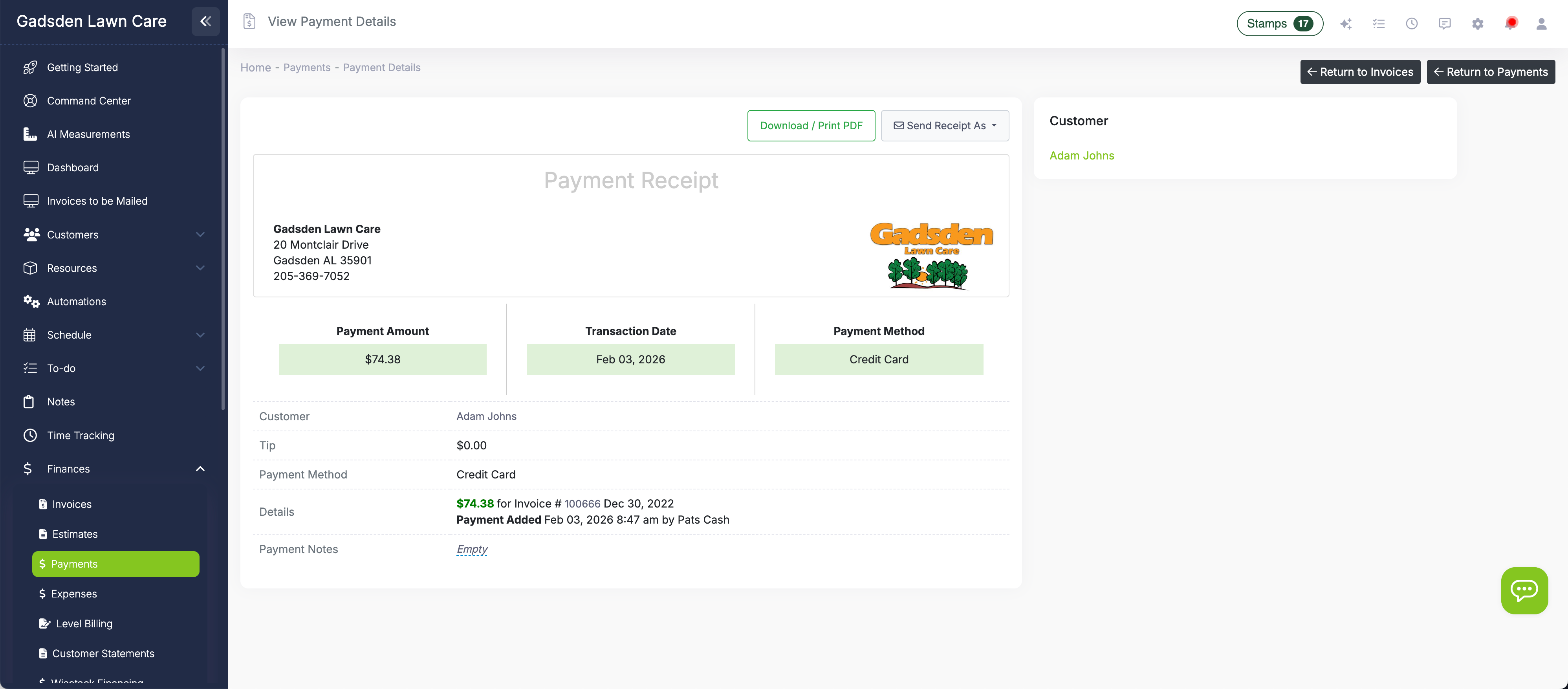
The customer gets a receipt—you get your money
After the charge processes, LawnPro generates a receipt. Set up an automation to email or text the receipt to the customer automatically. The customer sees the charge, sees the receipt in their portal, and knows exactly what they paid for. Your payment ledger updates in real time. If you have QuickBooks Sync enabled, the payment flows to QuickBooks too. The entire cycle—from completed visit to money in your account—happens without a single manual step.
From completed visit to collected payment—zero steps
When you combine auto-invoicing and auto-charge, the entire billing cycle runs without you.
Visit Completed
Crew marks the visit done in the field
Invoice Created
Auto-invoicing generates the bill
Card Charged
Auto-charge processes the payment
Receipt Sent
Automation emails or texts the receipt
QuickBooks Synced
Invoice and payment flow to your books
Every step is automatic. You don't click, type, or log in to anything.
I went from spending every Sunday afternoon billing customers to not thinking about billing at all. The visit completes, the invoice creates itself, the card charges, and the receipt sends. I just check the bank balance. That's my entire billing workflow now.
LawnPro Customer
Why auto-charge changes everything
The less time you spend collecting money, the more time you spend making it.
Instant Collection
Invoice created, card charged, payment recorded—all in the same moment. No delay between billing and getting paid.
Cards & ACH
Auto-charge works with credit cards and ACH bank accounts. Whichever payment method the customer saved, that's what gets charged.
Customer-Authorized
Customers explicitly opt in to auto-charge when they save their card. They control the authorization, which means fewer disputes and more trust.
Pairs with Auto-Invoicing
Combine auto-invoicing with auto-charge and the billing pipeline runs completely without you. Visit complete → invoice → charge → receipt → QuickBooks.
Manage Cards Dashboard
See who has a card on file and who doesn't. Send card requests in bulk. Charge saved cards with one click from the Manage Credit Cards screen.
Pass Fees or Absorb
Choose to pass the processing fee to customers, set a flat surcharge, or absorb it yourself. The fee is added automatically at charge time.

Not everyone uses auto-charge. That's fine—you have options.
For customers who have a card on file but haven't enabled auto-charge, you can charge their card manually from three places: the Charge Cards On File screen (Customers → Charge Cards On File), the Payments page, or directly from an invoice. The Charge Cards screen shows every customer with a saved card and an open invoice—enter the amount and click "Charge Card."
This means auto-charge handles the bulk of your collections automatically, and the few remaining customers can be charged manually in seconds. Either way, you're never writing invoices, stuffing envelopes, or waiting for checks.
What is auto-charge for lawn care?
Auto-charge for lawn care means a customer's saved credit card or bank account is charged automatically the moment an invoice is created—without you processing anything manually. The customer saves their payment method, authorizes you to charge it, and enables auto-charge. From that point on, every invoice on their account is paid instantly when it's generated.
In LawnPro, auto-charge works with both credit cards and ACH bank transfers. The customer controls the authorization from the client portal—they decide whether you can charge their card and whether auto-charge is enabled. This customer-controlled approach means fewer disputes and chargebacks because the customer explicitly opted in. You can see all card-on-file statuses from the Manage Credit Cards dashboard, which shows customers with and without cards and lets you send card requests by text or email.
The real power shows when you pair auto-charge with auto-invoicing. Turn on auto-invoicing so invoices create themselves when visits are completed. Turn on auto-charge so those invoices charge the card the moment they're created. Add an automation to send the receipt by email or text. Connect QuickBooks Sync so the invoice and payment flow to your books. The result is a complete, end-to-end billing pipeline that runs while you mow, trim, spray, and drive—without you ever touching a billing screen.
Frequently asked questions
Auto-charge automatically processes a payment from a customer's saved credit card or ACH bank account the moment an invoice is created on their account. No manual steps are needed—the charge happens instantly.
Yes. When a customer saves a card through the portal, they choose whether to allow you to charge it and whether to enable auto-charge. Both authorizations are required. You cannot auto-charge a customer who hasn't opted in.
Yes. If a customer has connected their bank account via ACH and authorized auto-charge, their bank account is charged automatically when an invoice is created—the same as a credit card.
If a card is declined or an ACH transfer fails, the invoice stays unpaid. The customer can pay manually through the portal, or you can charge a different card. Set up a past-due automation to notify the customer automatically.
Yes—this is the most powerful setup. Auto-invoicing creates the invoice when a visit is completed. Auto-charge then charges the saved card instantly. Add an automation to send the receipt, and the entire billing pipeline runs itself.
Absolutely. For customers who have a card on file but haven't enabled auto-charge, you can charge their card manually from the Charge Cards On File screen, the Payments page, or directly from an invoice.
Auto-charge is available on plans that include online payments. There's no separate add-on fee for auto-charge—once you have online payments set up, you can enable auto-charge for any customer who authorizes it.
Explore more features
See what else LawnPro can do for your business.
Payment Options
Accept credit cards, ACH, and PayPal. Save cards on file and let customers pay through the portal.
Invoicing
Create, send, and auto-generate invoices. Turn on auto-invoicing to complete the auto-charge pipeline.
Workflow Automations
Automate receipt delivery, past-due reminders, and more. The final piece of the billing pipeline.
Resources
Help Articles
Guides on setting up auto-charge, saving cards, and managing payment methods.
Payment Help Articles →Video Tutorials
Watch how to enable auto-charge and set up the full billing pipeline.
Watch Videos →