Your books stay clean. Automatically.
Sync customers, invoices, and payments between LawnPro and QuickBooks Online—two-way, with duplicate prevention. Turn on auto-sync and every invoice you create and every payment you collect flows to QuickBooks without you touching it. No double entry, no end-of-month catch-up, no spreadsheet exports.
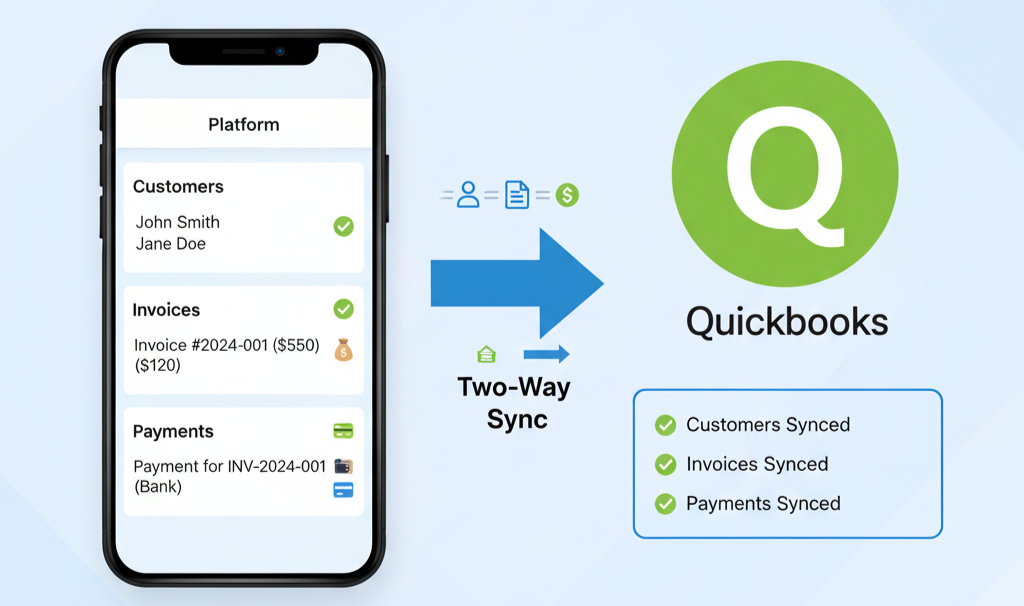
What syncs, and how you control it
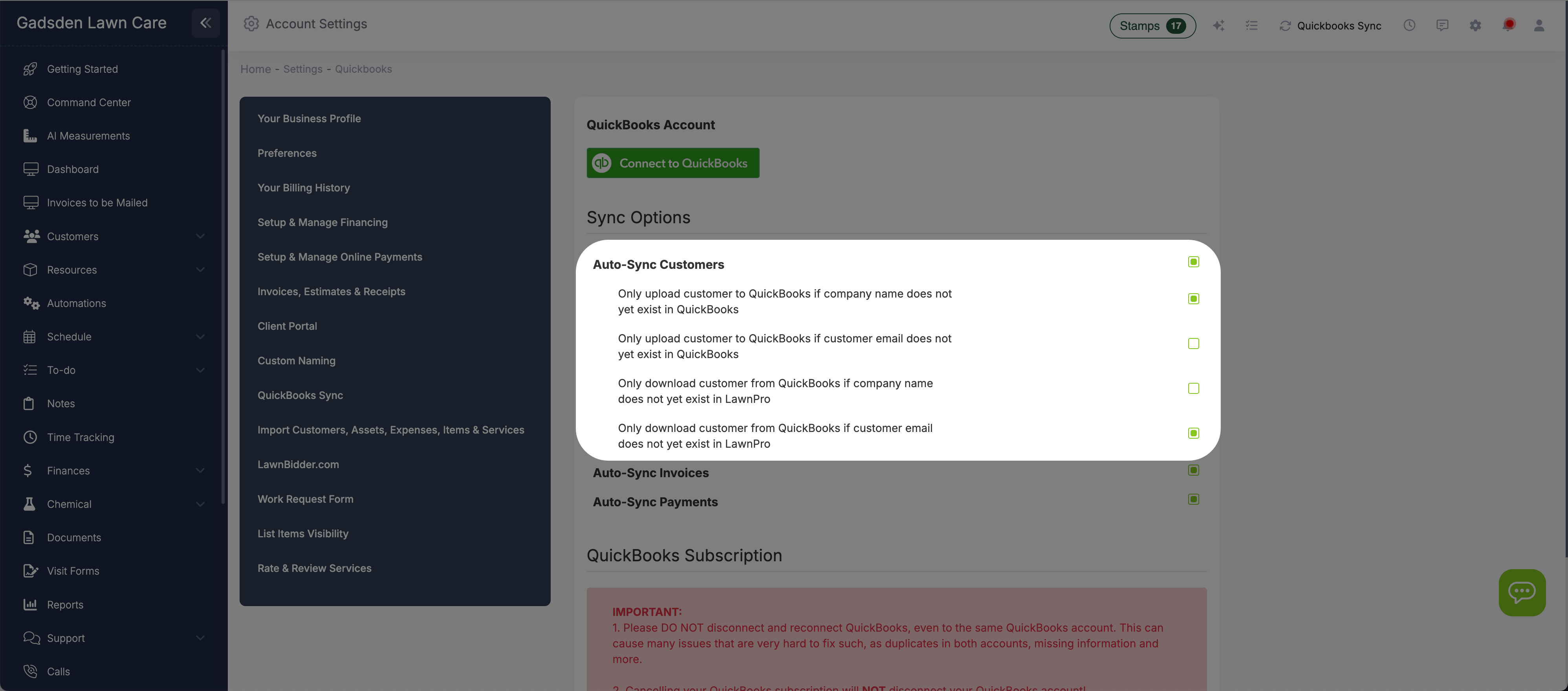
Two-way customer sync with duplicate prevention
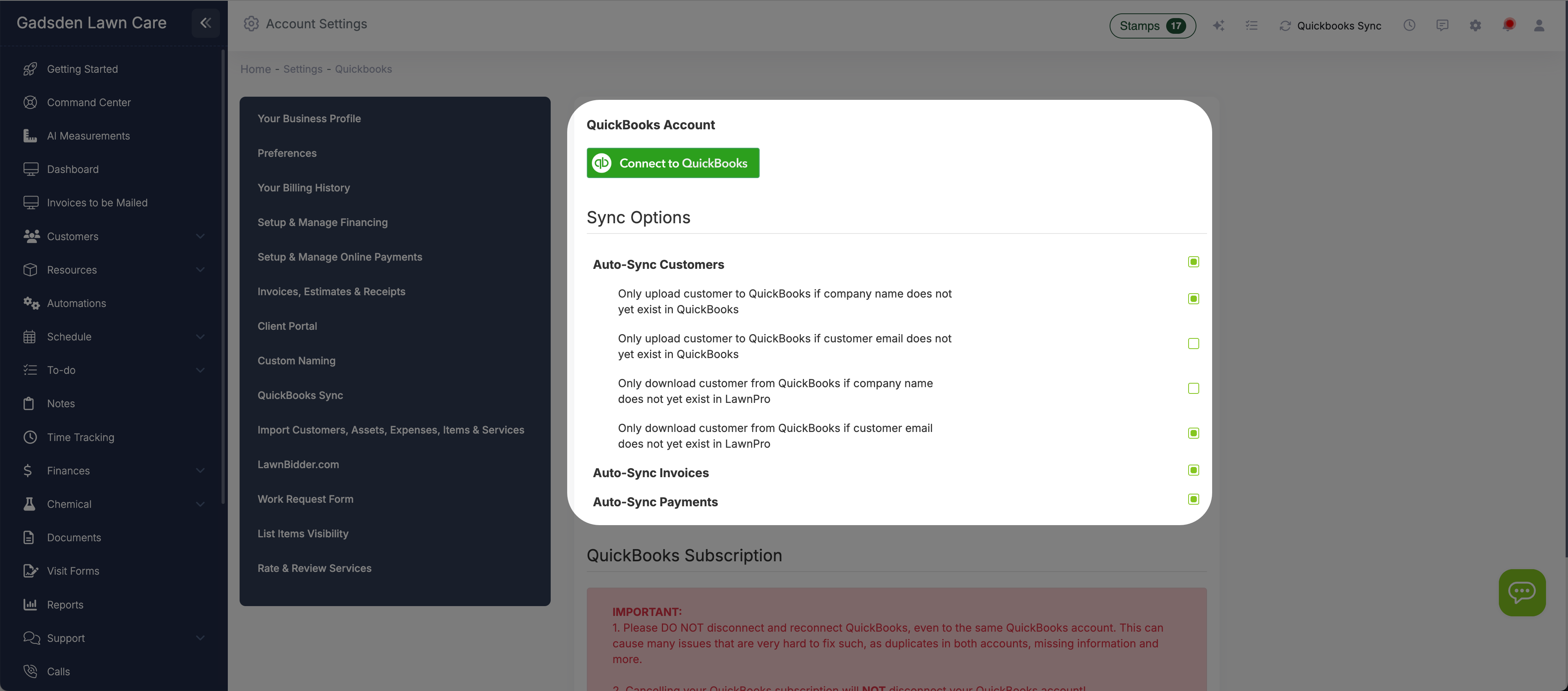
Enable Auto-Sync Customers and your customer records flow between LawnPro and QuickBooks Online. New customers you add in LawnPro appear in QuickBooks, and customers you add in QuickBooks can sync to LawnPro. To prevent duplicates, you control the rules: only upload if the company name doesn't already exist in QuickBooks, only upload if the email doesn't exist, only download if the company name doesn't exist in LawnPro, or only download if the email doesn't exist. Mix and match these settings to match how your data is organized.
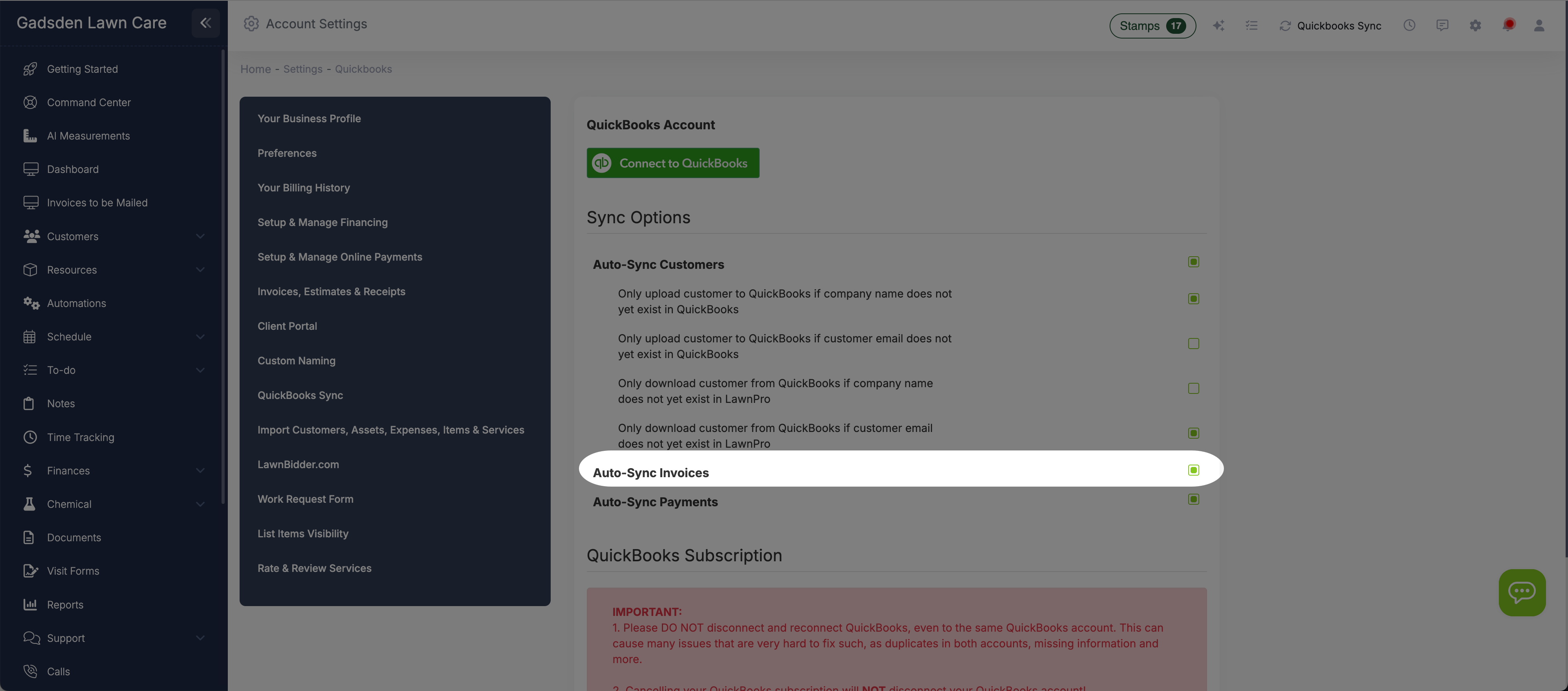
Every invoice syncs to QuickBooks the moment it's created
Enable Auto-Sync Invoices and every invoice you create in LawnPro is automatically pushed to QuickBooks Online. Line items, amounts, customer details, and dates all transfer. No exporting CSVs, no manual re-entry, no reconciliation spreadsheets. Your accountant or bookkeeper sees the same invoices you do, in real time. This is especially powerful when combined with auto-invoicing—close a visit, the invoice creates itself, and it flows straight to QuickBooks without you doing anything.
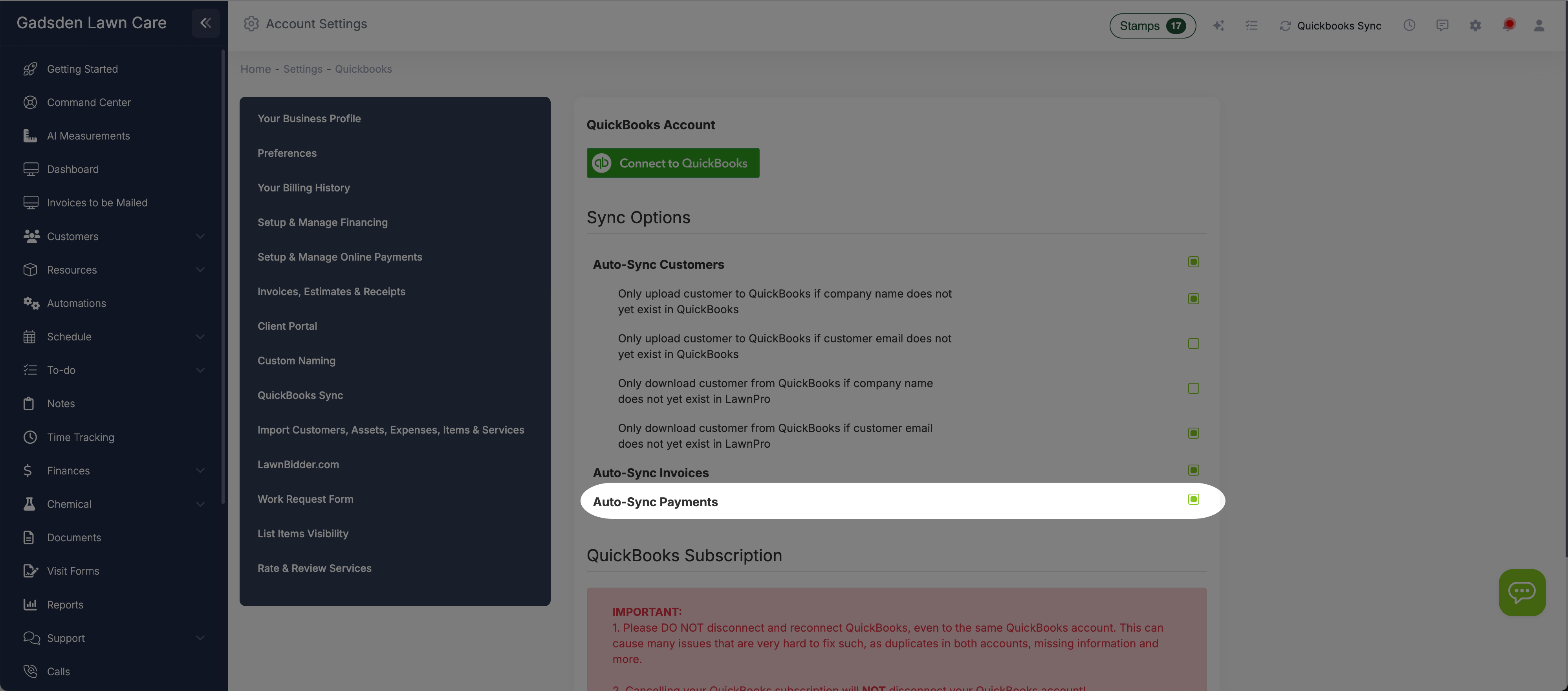
Payments land in QuickBooks as they happen
Enable Auto-Sync Payments and every payment you collect—credit card, ACH, or manual entry—syncs to QuickBooks Online automatically. The payment amount, date, customer, and associated invoice all transfer. When a customer pays through the portal or you charge a card on file, QuickBooks updates without you logging in. Your accounts receivable stays accurate without end-of-month reconciliation sessions.
You control exactly what flows and what doesn't
The QuickBooks Sync settings page gives you full control. Toggle auto-sync on or off independently for customers, invoices, and payments. Set duplicate prevention rules based on company name or email address—separately for uploads (LawnPro → QuickBooks) and downloads (QuickBooks → LawnPro). Connect to QuickBooks with one click and your sync starts working immediately based on your settings. If you ever need to adjust, change a toggle and the behavior updates right away.
Connect in three clicks
Getting started takes less than two minutes.
Enable QuickBooks Sync
Go to Settings → QuickBooks Sync and click "Enable QuickBooks Sync" or "Connect to QuickBooks."
Log in to QuickBooks
Authorize the connection with your QuickBooks Online credentials. LawnPro links to your account securely.
Set Your Sync Rules
Toggle auto-sync for customers, invoices, and payments. Set duplicate prevention rules. Done.
I used to spend two hours every Friday night entering invoices into QuickBooks. Now they just show up there. Payments too. My accountant loves it because everything matches and she doesn't have to chase me for missing entries at tax time.
LawnPro Customer
Why sync matters for your business
Manual data entry is slow, error-prone, and the first thing to fall behind when you're busy.
Two-Way Sync
Data flows both directions. Add a customer in LawnPro and it appears in QuickBooks. Add one in QuickBooks and it syncs to LawnPro. One source of truth.
Duplicate Prevention
Control sync rules based on company name or email. Prevent duplicate records from being created in either system so your data stays clean.
Real-Time Auto-Sync
Invoices and payments sync as they happen. No manual exports, no end-of-month catch-up. Your QuickBooks account stays current without extra work.
Granular Control
Toggle auto-sync independently for customers, invoices, and payments. Want to sync invoices but manage customers manually? Just flip the toggles.
Tax-Ready Books
Every invoice and payment in QuickBooks, automatically. Your accountant has what they need for quarterly estimates and annual filings without chasing you.
One-Click Connection
Connect to QuickBooks Online in seconds. Click a button, log in, authorize, and your sync is live. No complicated setup or API configuration.
What is QuickBooks Sync for lawn care?
QuickBooks Sync for lawn care connects your field service software to your accounting software so data flows automatically between the two. Instead of creating an invoice in LawnPro and then re-entering it in QuickBooks, the sync pushes it over for you. Same with payments—when a customer pays online or you record a check, it shows up in QuickBooks without manual entry.
LawnPro's QuickBooks Sync works with QuickBooks Online and supports two-way syncing for customers, invoices, and payments. You control each type independently with auto-sync toggles. Duplicate prevention settings let you match records by company name or email address so the same customer doesn't get created twice. This is especially important during initial setup when both systems may already have overlapping data.
The result is accurate books without extra work. Combine QuickBooks Sync with LawnPro's auto-invoicing and auto-charge features and the entire billing pipeline runs on autopilot: close a visit, the invoice creates itself, the card is charged, the payment records, and everything syncs to QuickBooks—all without you opening a browser tab. QuickBooks Sync is available as an add-on for $15 per month and is currently supported in the U.S.
Frequently asked questions
Customers, invoices, and payments. Each type has its own auto-sync toggle so you can choose which data flows automatically and which you manage manually.
No. QuickBooks Sync only supports QuickBooks Online. QuickBooks Desktop, QuickBooks Pro, and QuickBooks Enterprise are not supported.
Not if you use the duplicate prevention settings. You can set the sync to only upload customers if the company name or email doesn't already exist in QuickBooks, and only download customers if the company name or email doesn't already exist in LawnPro. These settings prevent duplicates in both directions.
Some LawnPro plans include QuickBooks Sync. If your plan does not, you can add it for $15 per month. There's no setup fee—enable it in settings and you're connected.
Not currently. QuickBooks Sync is only available in the United States at this time.
You should not disconnect and reconnect QuickBooks, even to the same QuickBooks account. Doing so can cause duplicates and data issues that are difficult to fix. If you're having sync problems, contact support before disconnecting.
Yes—if you have Auto-Sync Invoices enabled. Every invoice you create in LawnPro pushes to QuickBooks Online automatically. Same with payments when Auto-Sync Payments is enabled.
Explore more features
See what else LawnPro can do for your business.
Invoicing
Create, send, and automate invoices. Everything you invoice flows to QuickBooks automatically when sync is enabled.
Payment Options
Accept credit cards, ACH, and PayPal. Every payment syncs to QuickBooks so your accounts receivable stays accurate.
Zapier Integration
Connect LawnPro to 3,000+ apps. Build advanced workflows that go beyond what QuickBooks Sync covers.
Resources
Help Articles
Step-by-step guides on connecting QuickBooks and configuring sync settings.
QuickBooks Help Articles →